
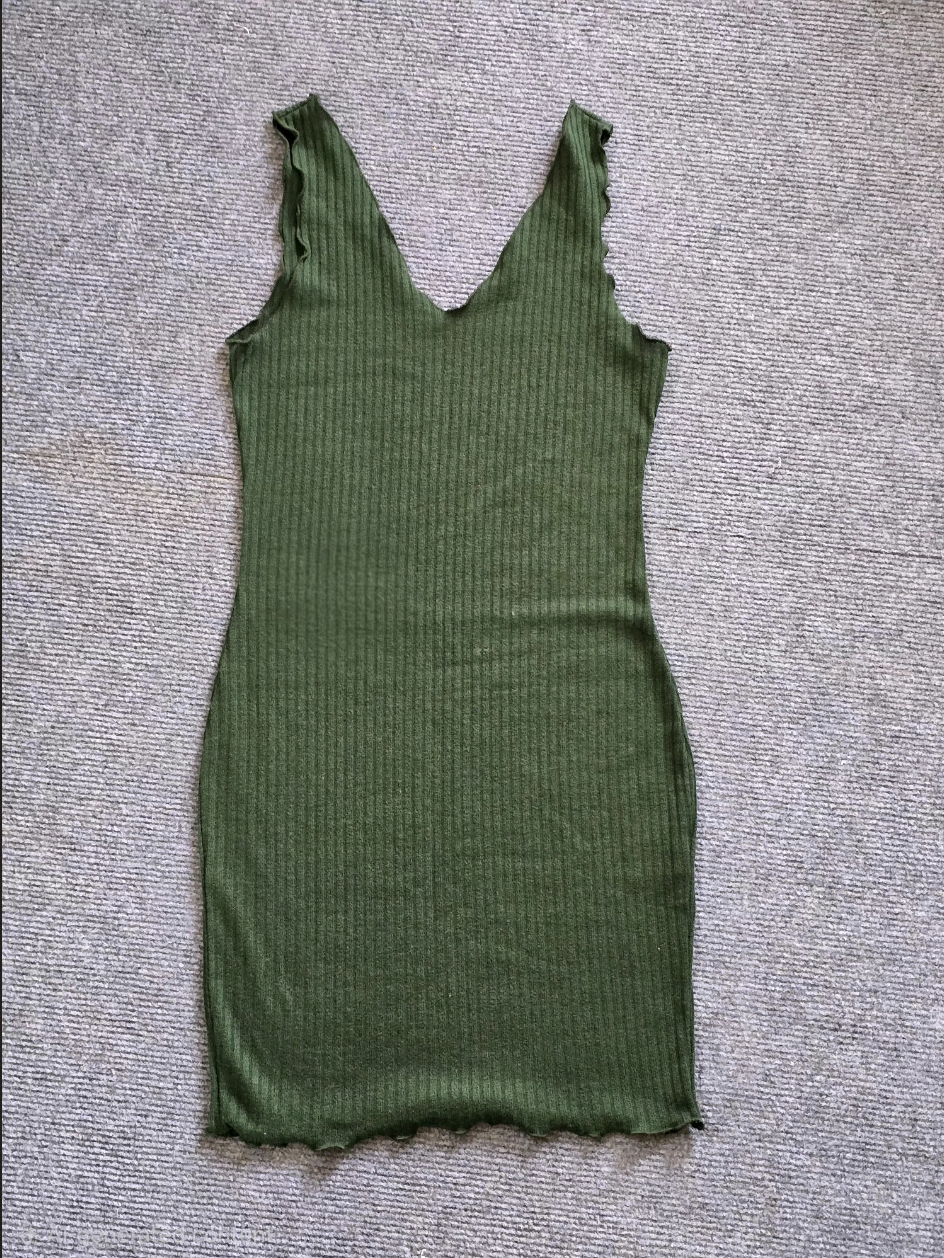
A dress on the carpet
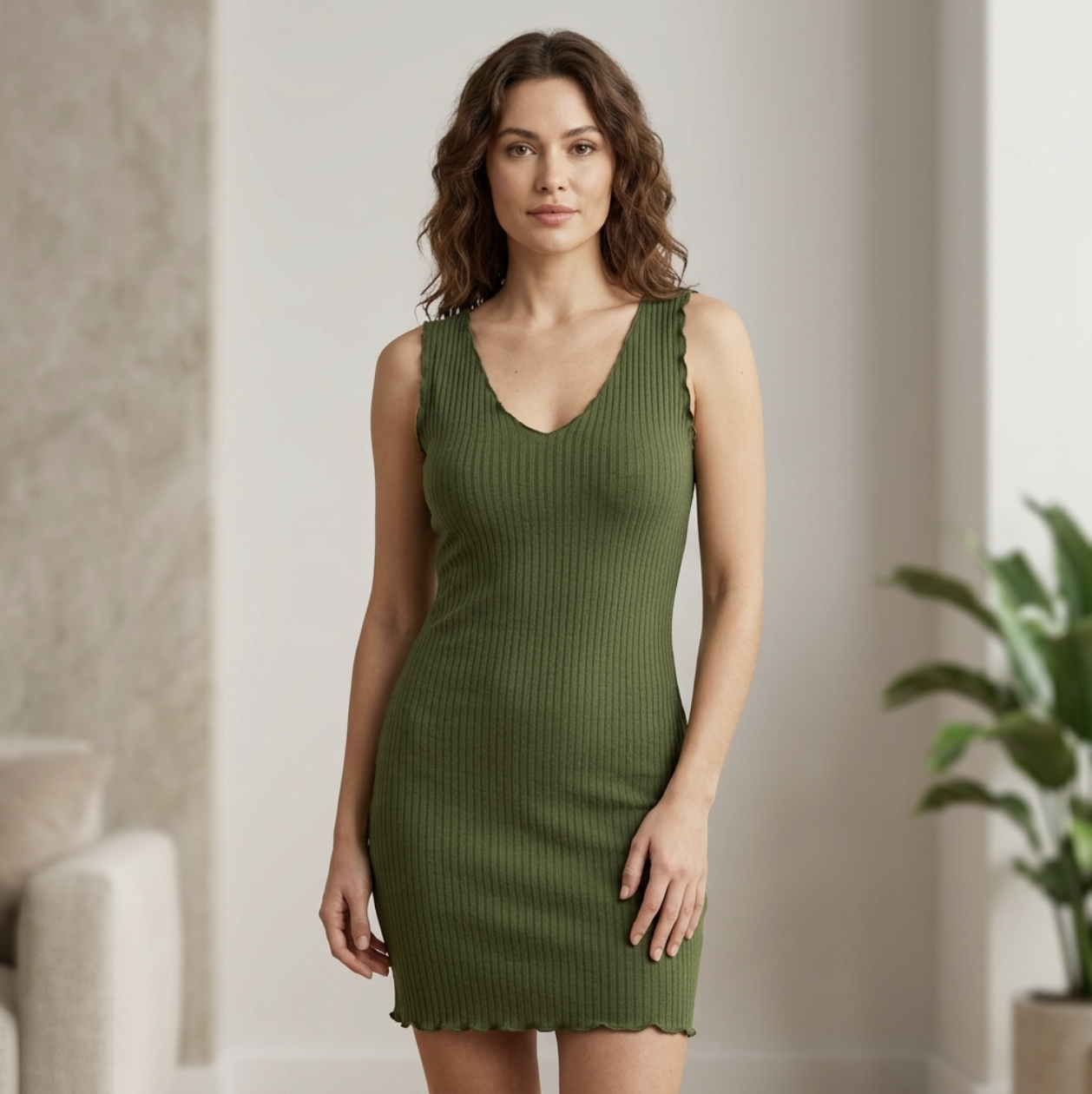
The same dress, worn and lit for the shop.
InstantSnap turns a photo of clothes or a product into a studio shot. Set the model, the background, the angle, and the frame. Keep every shot in the workspace.
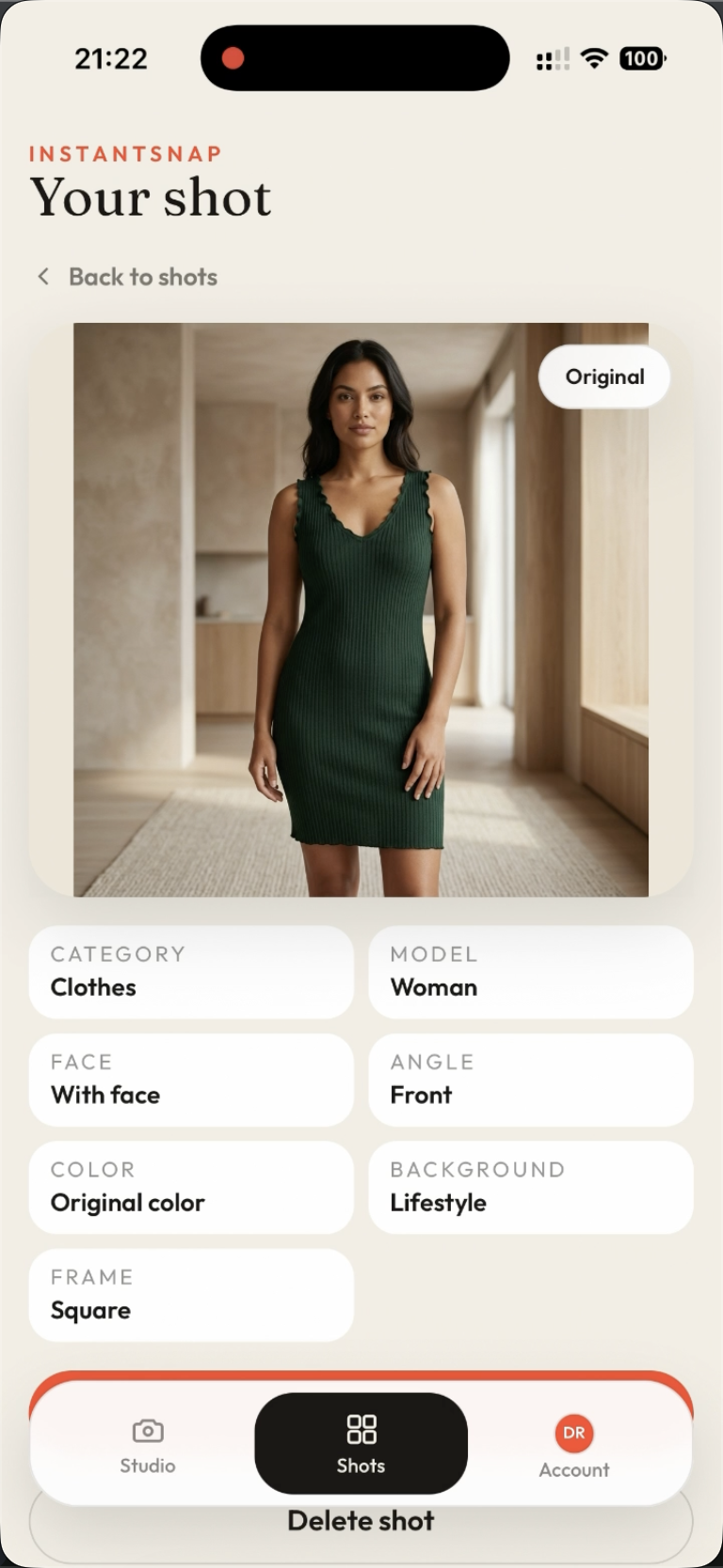
Phone photo in, studio shot out
The carpet, the kitchen table, and the hand in the frame stay in the phone photo. InstantSnap keeps the item and gives it a catalog setting.
The same dress, worn and lit for the shop.
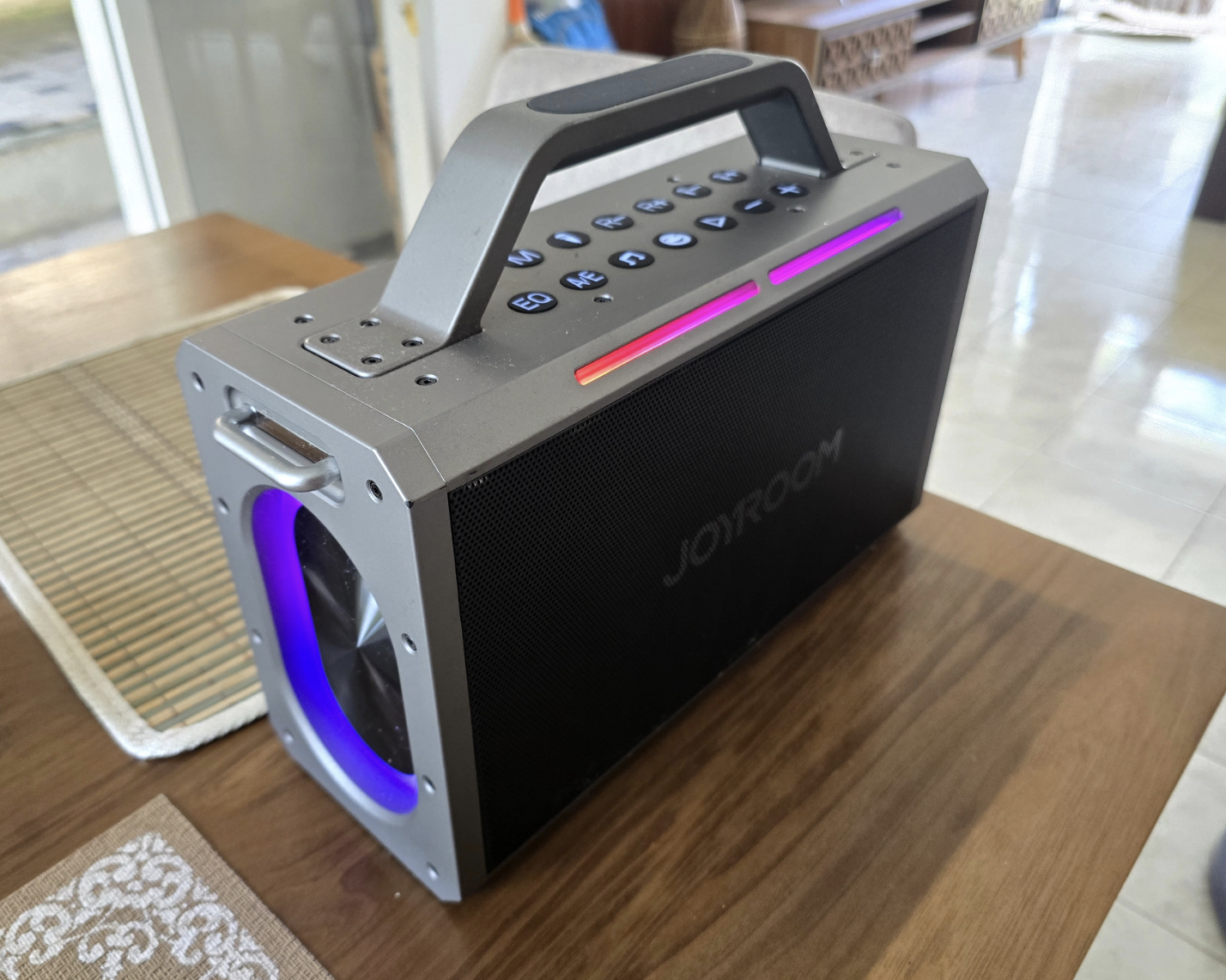
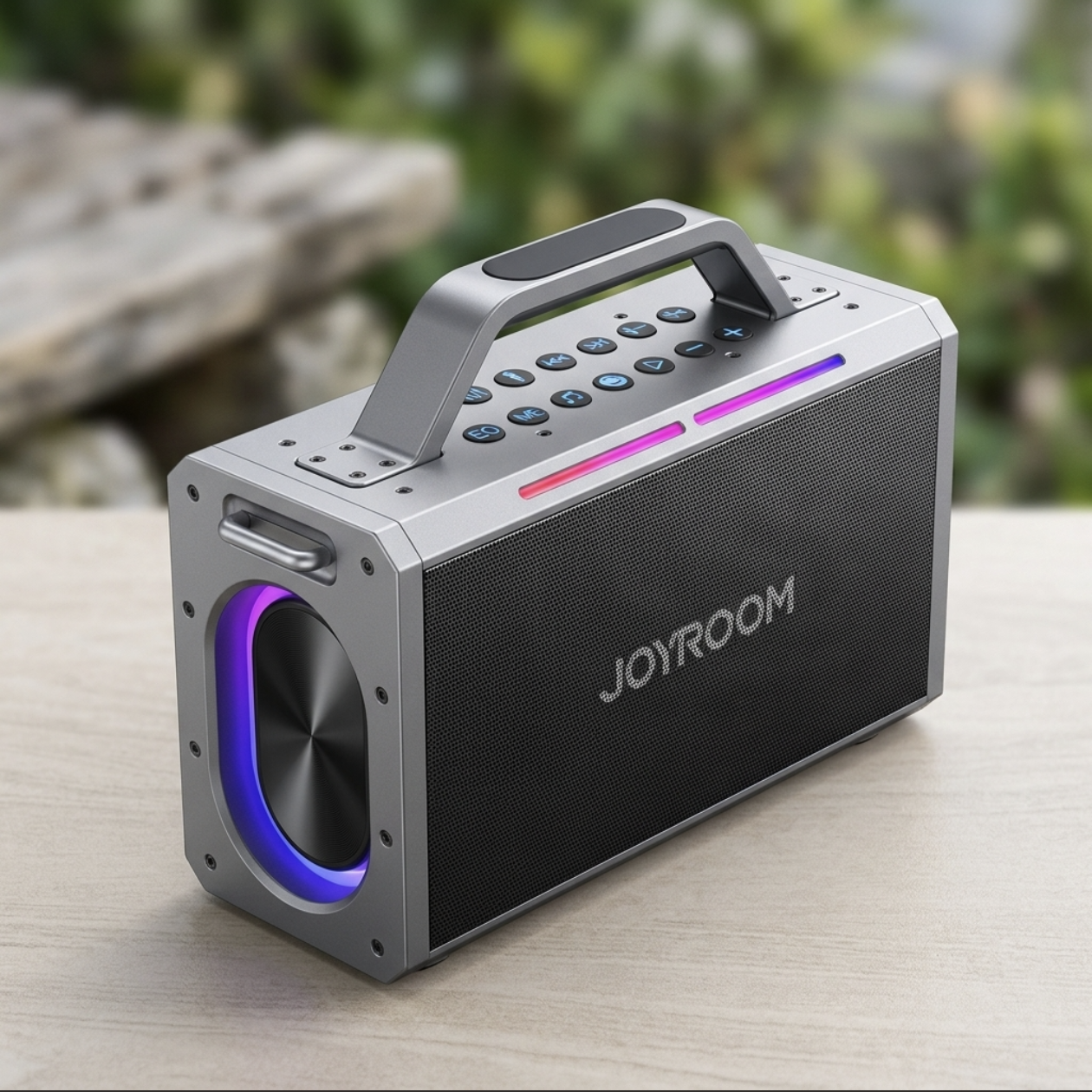
The same speaker, set for a product listing.
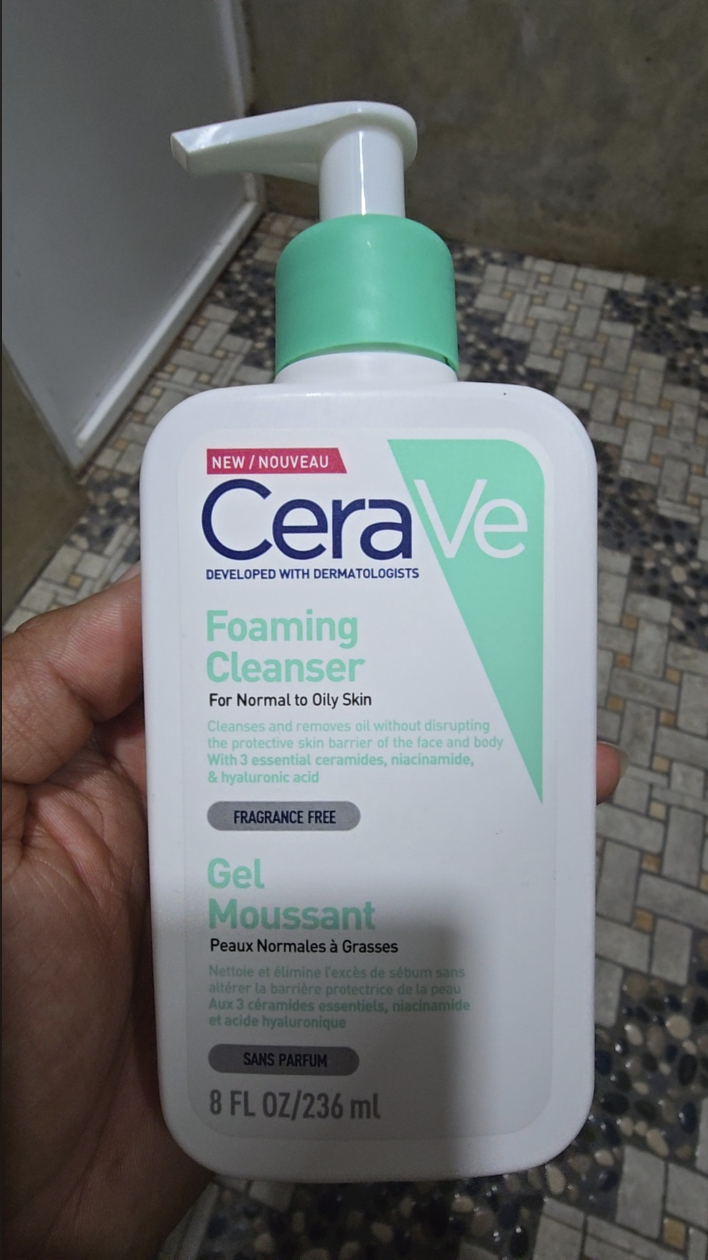
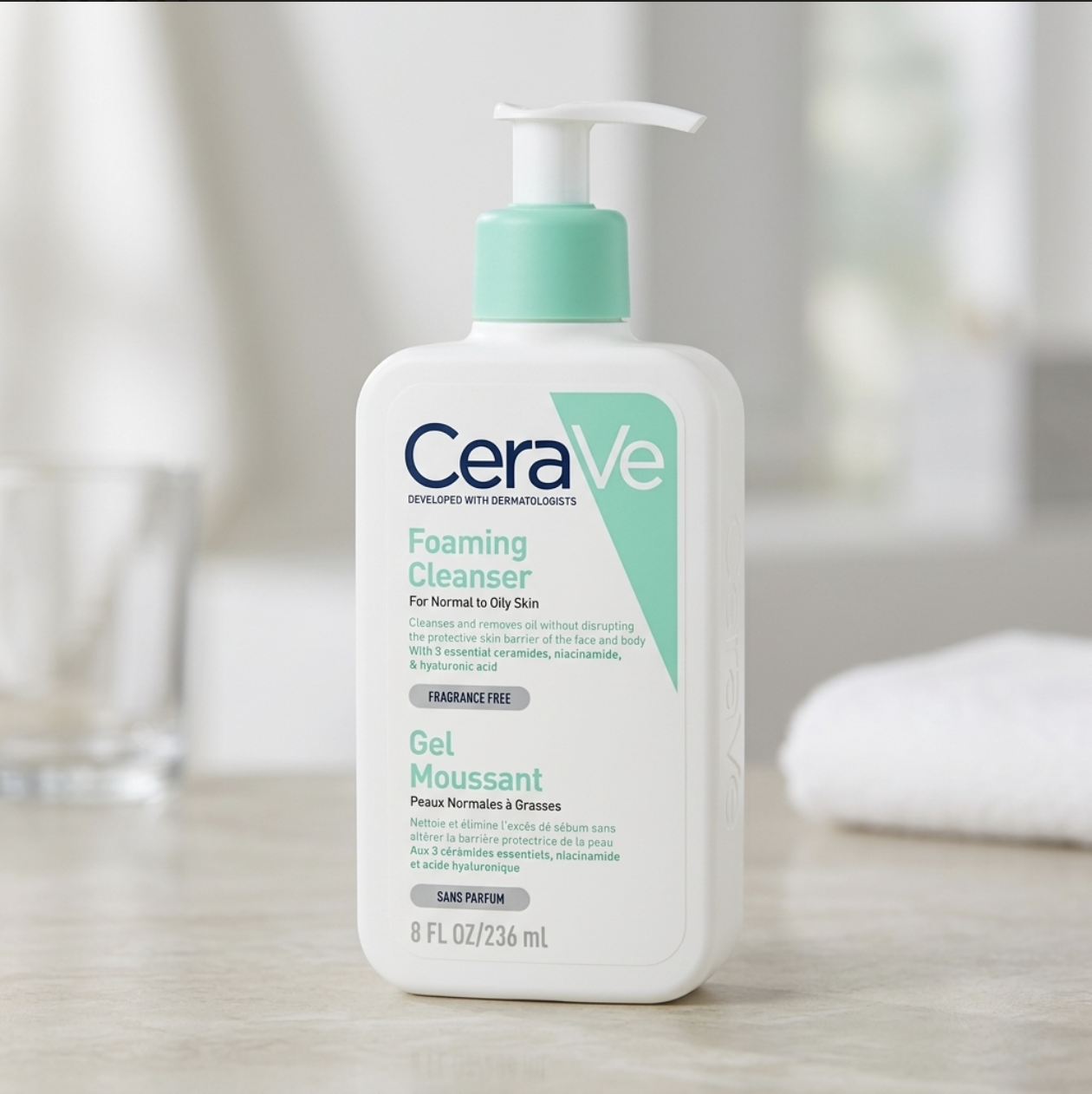
The same bottle, standing clear of the room.
01
Take one or choose one. HEIC is converted in the studio.
02
Clothes or product, then the model, background, angle, and frame.
03
It lands in Shots, ready to open and save.
The look
Front, 3/4, side, detail, or flat lay. A quiet white sweep, or outdoor, marble, wood, and lifestyle scenes. Square for a product grid, portrait for a page, story for a full-screen placement.
How to choose a look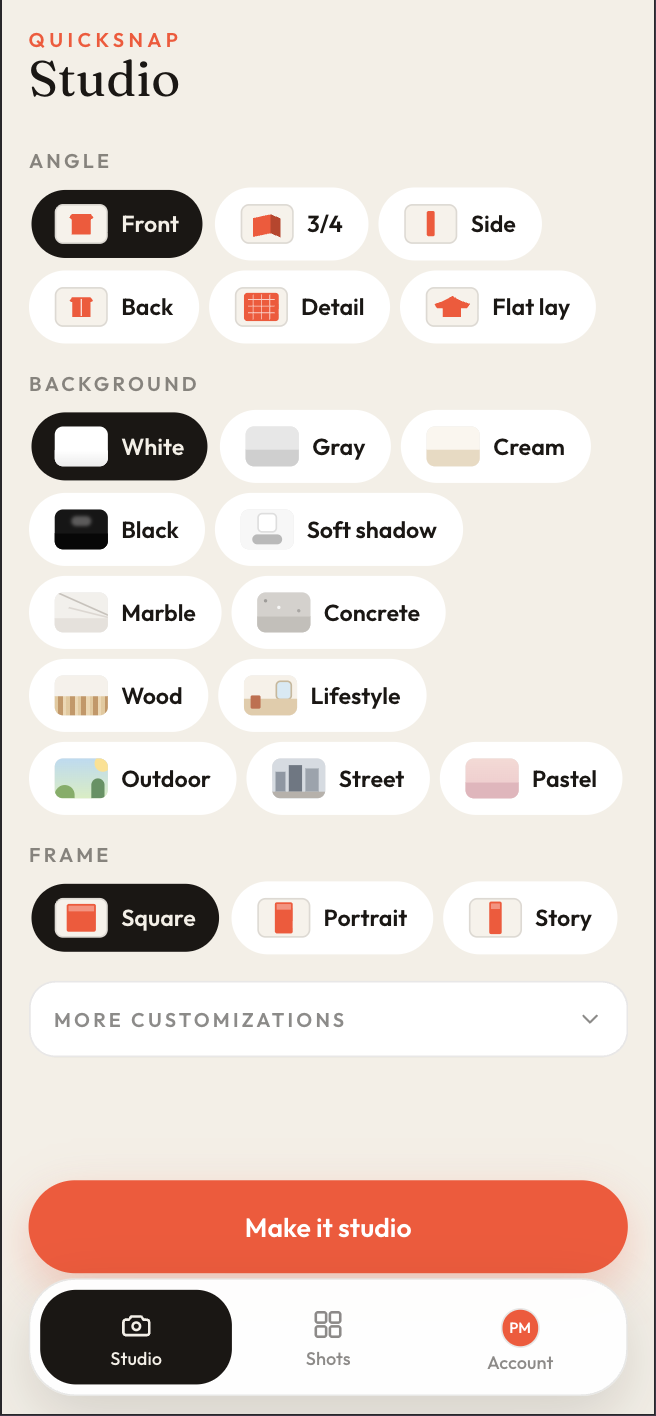
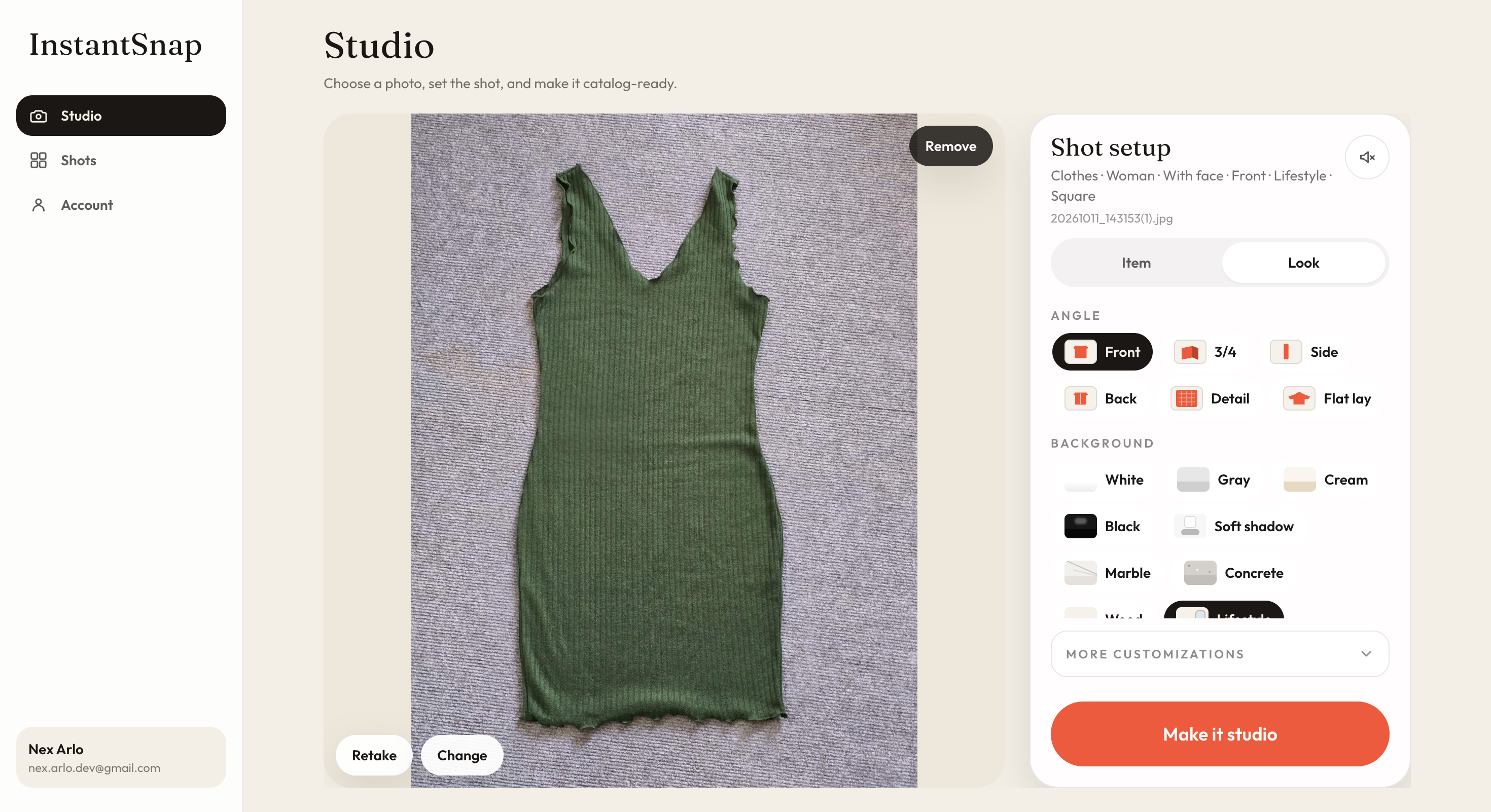
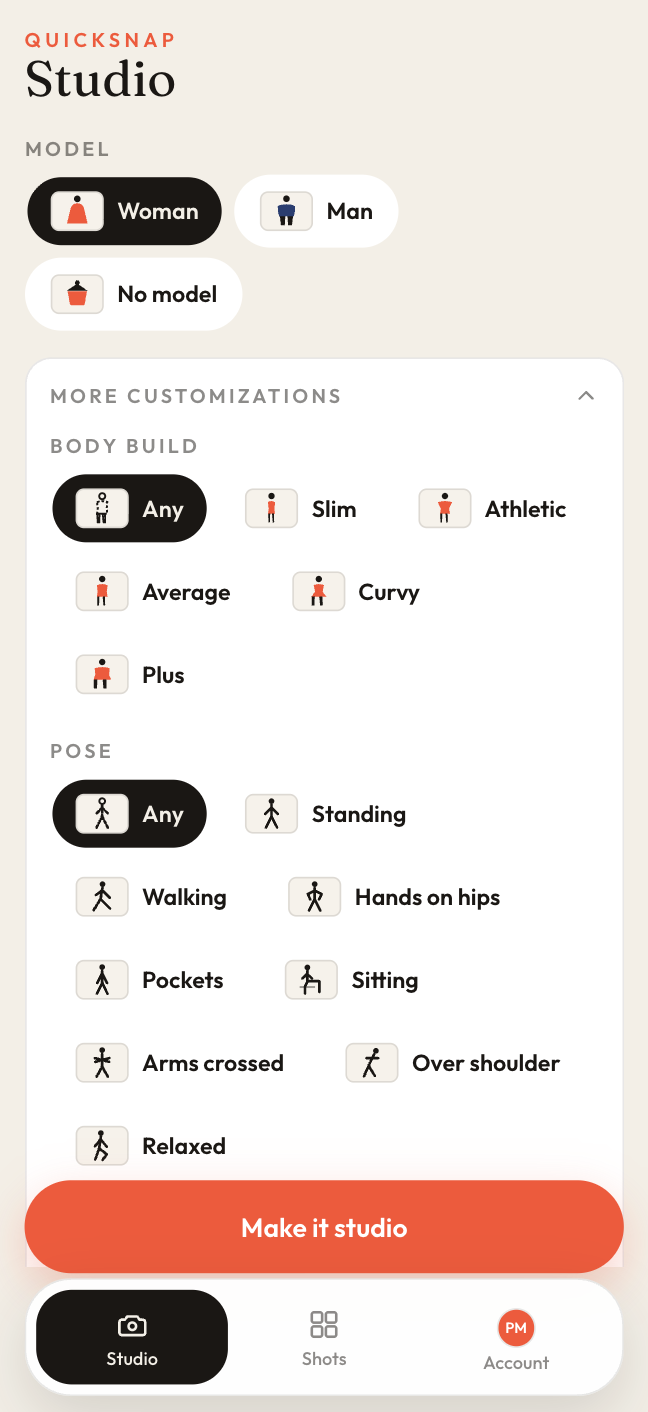
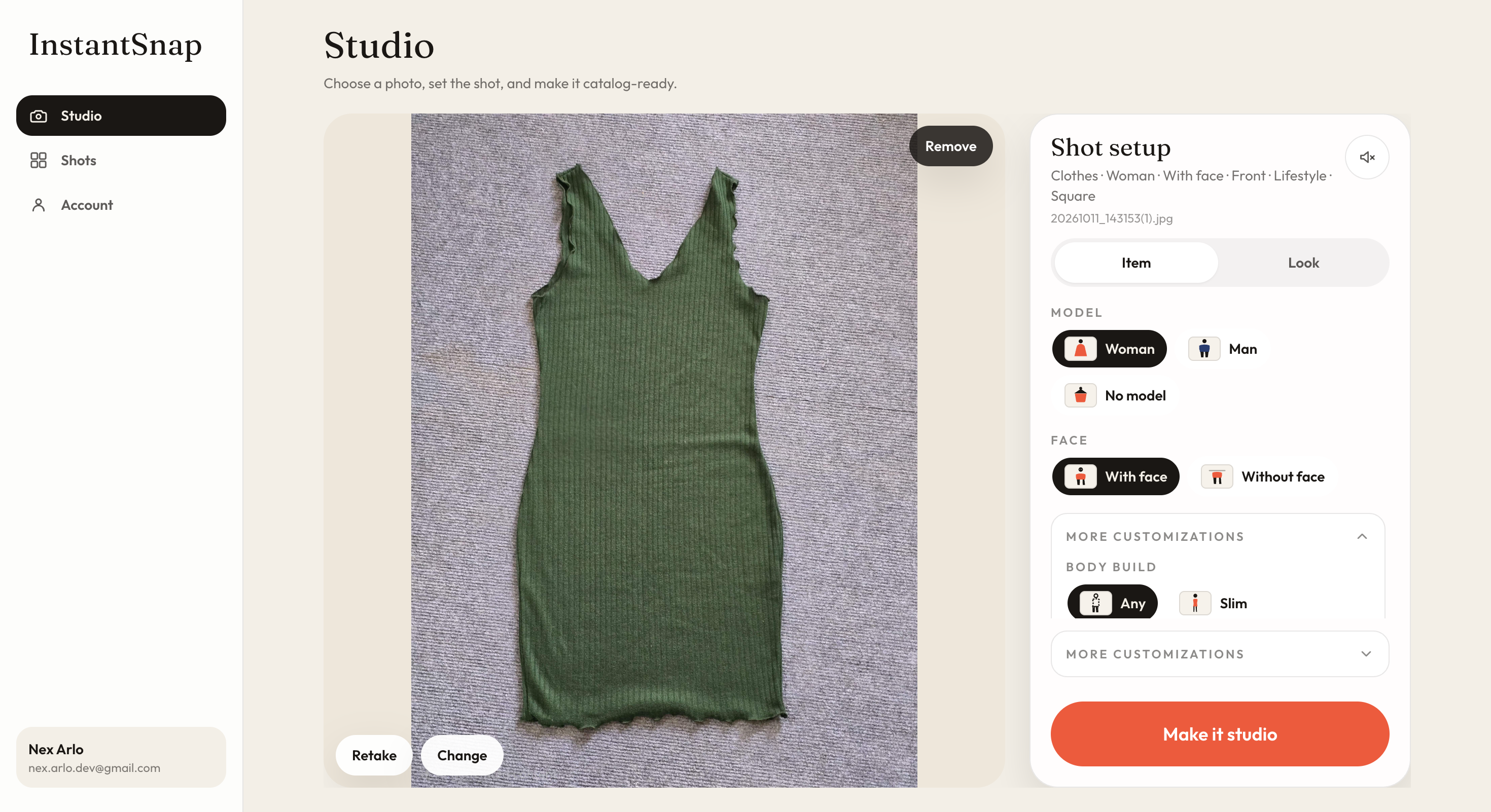
Choose woman or man, then body build, pose, skin tone, and hair color. Leave a control on Any when you do not need it. Product shots skip the model entirely.
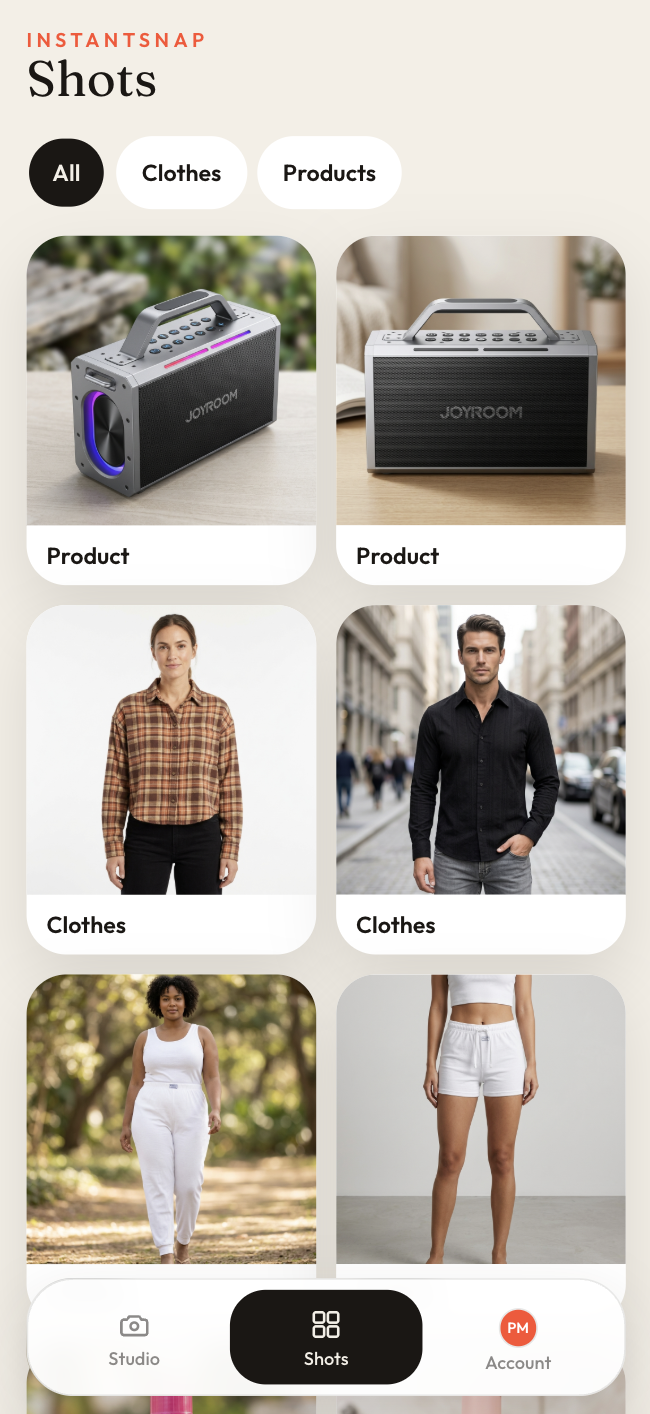
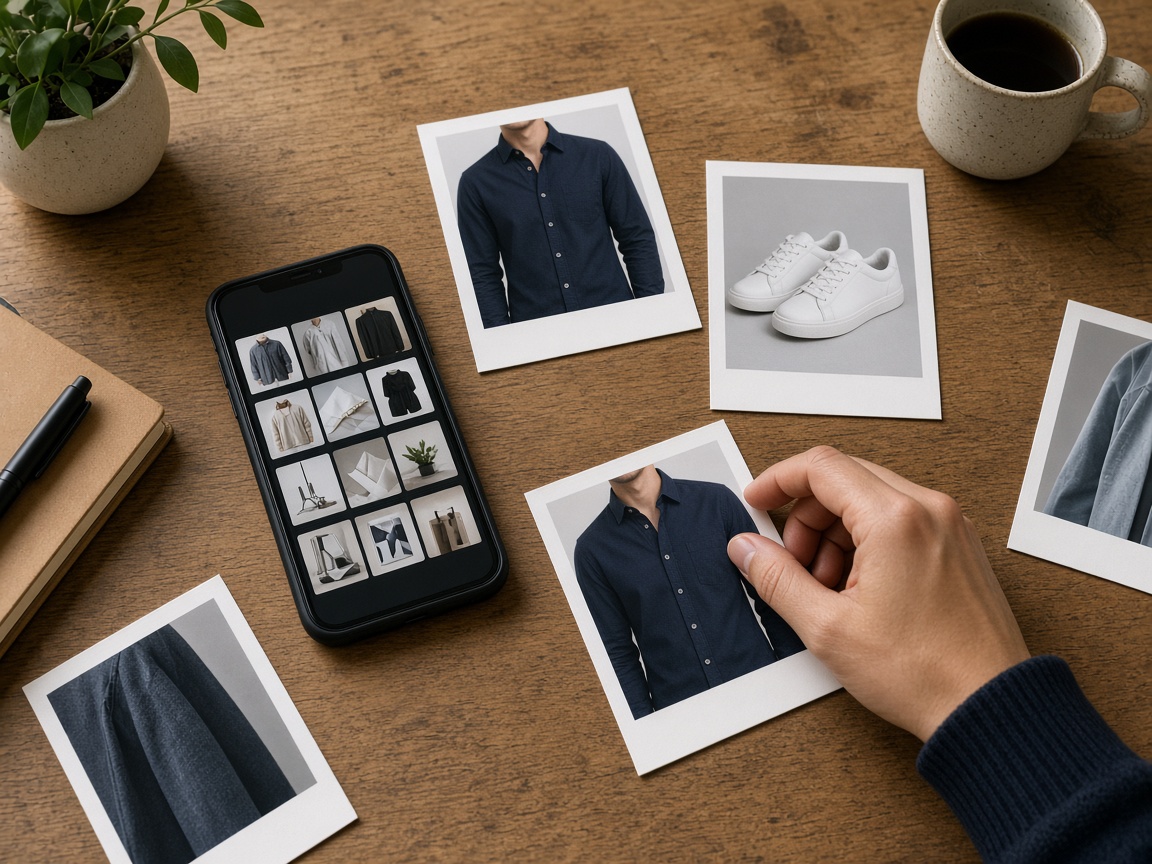
Filter by clothes or products, open a finished photo, compare it with the original, and save it. The library is the catalog, not a camera roll.
Plans
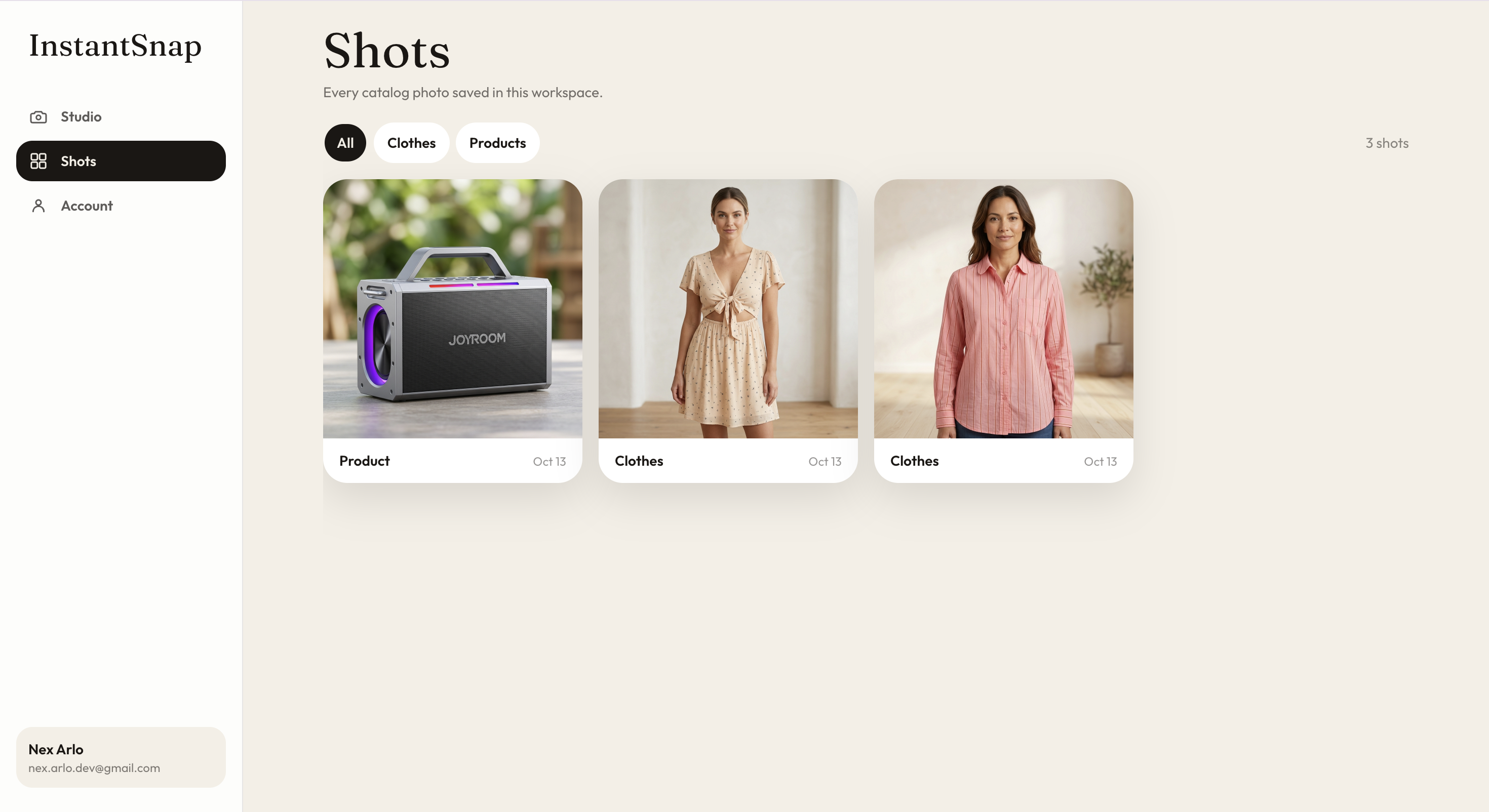
 Create your first studio shotAdd a phone photo in InstantSnap, set the item and the look, then make a catalog shot and open it from Shots.
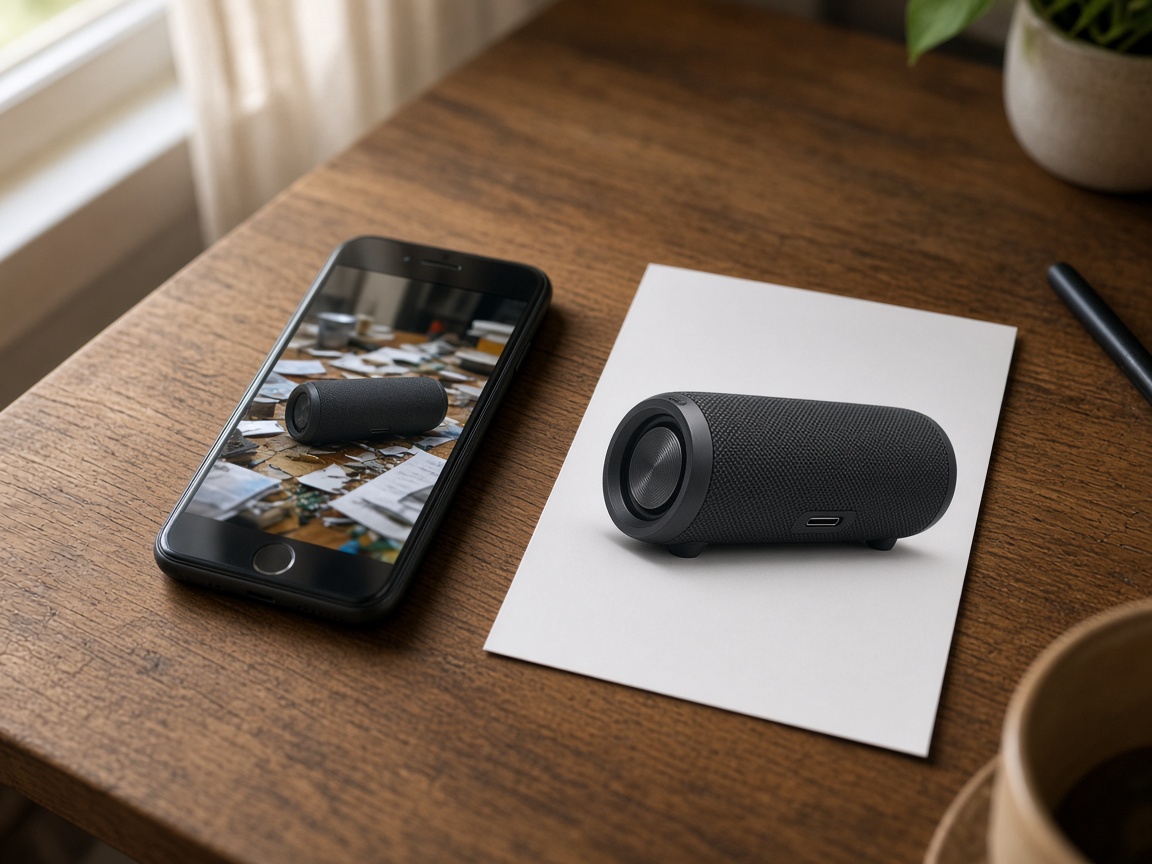
 Put clothes on a modelChoose Clothes, pick a model, then set body build, pose, skin tone, and hair color before you make the shot.
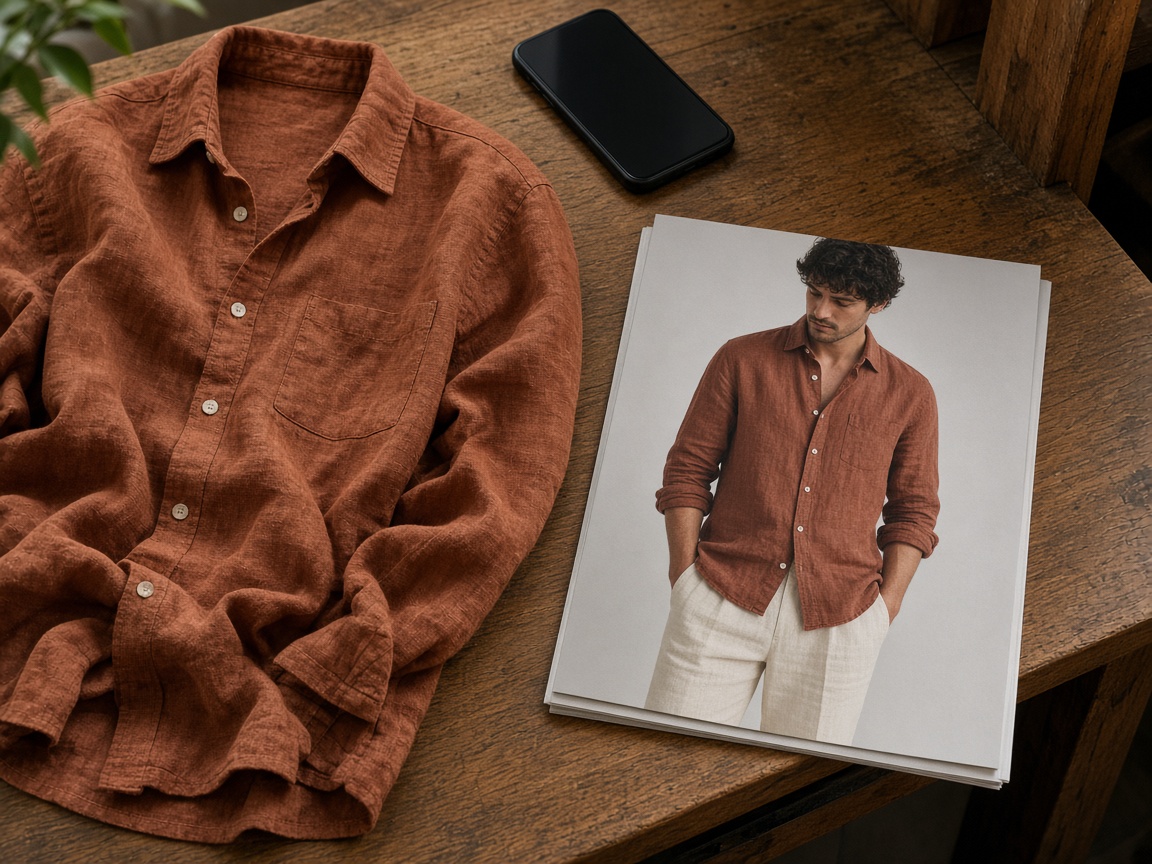
 Find a shot and save the photoFilter the Shots library, open a finished catalog photo, compare it with the original, and save it.
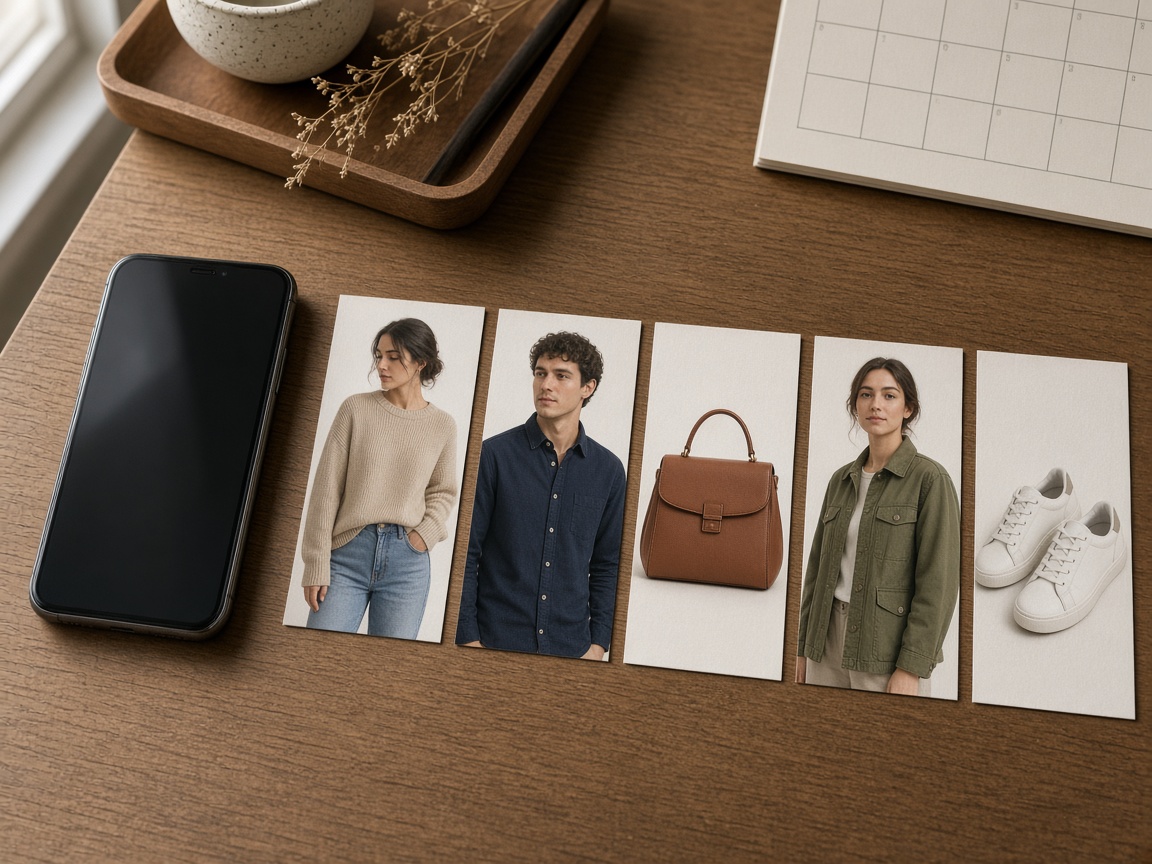 Check your plan and photo allowanceSee how many studio shots are left this month, and what Free, Standard, Premium, and Growth include.
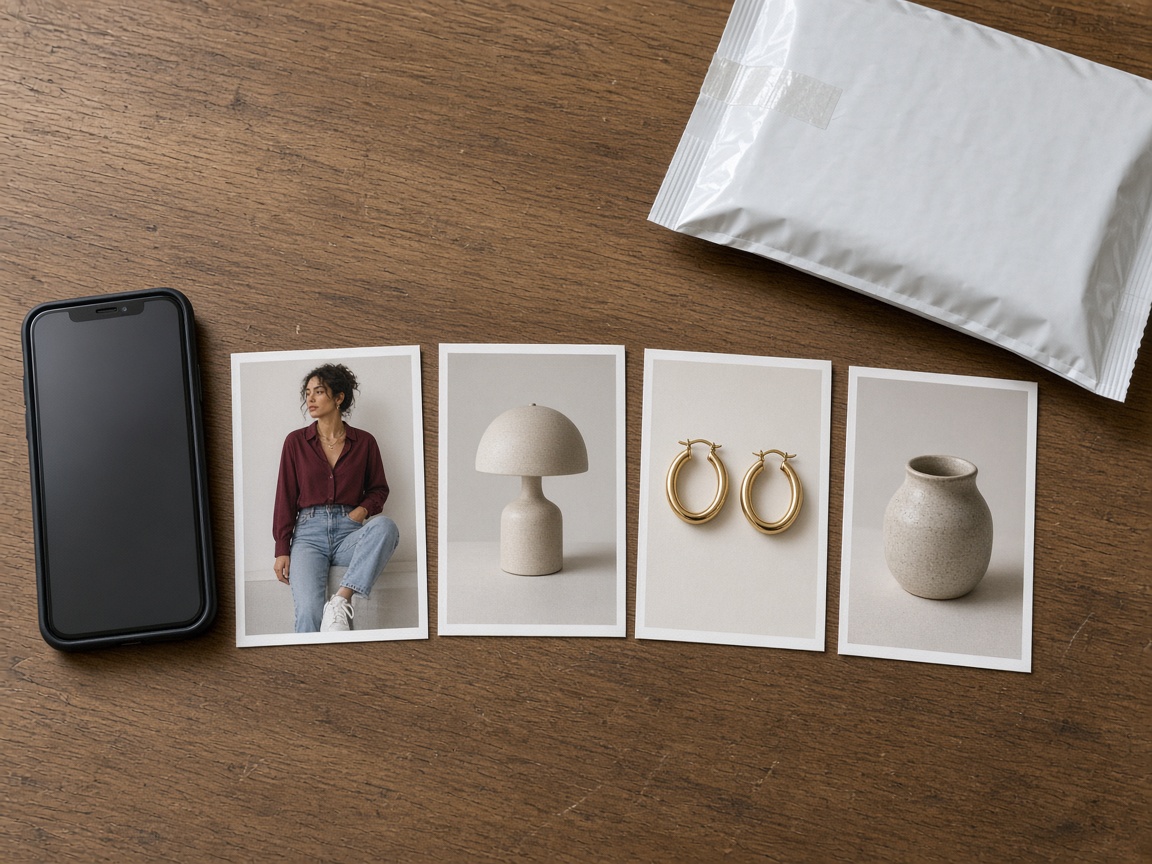 From the parcel to a live listing the same dayHow a Sri Lankan seller can photograph a new delivery, make the catalog shots, and have the files ready to post before the afternoon is over.
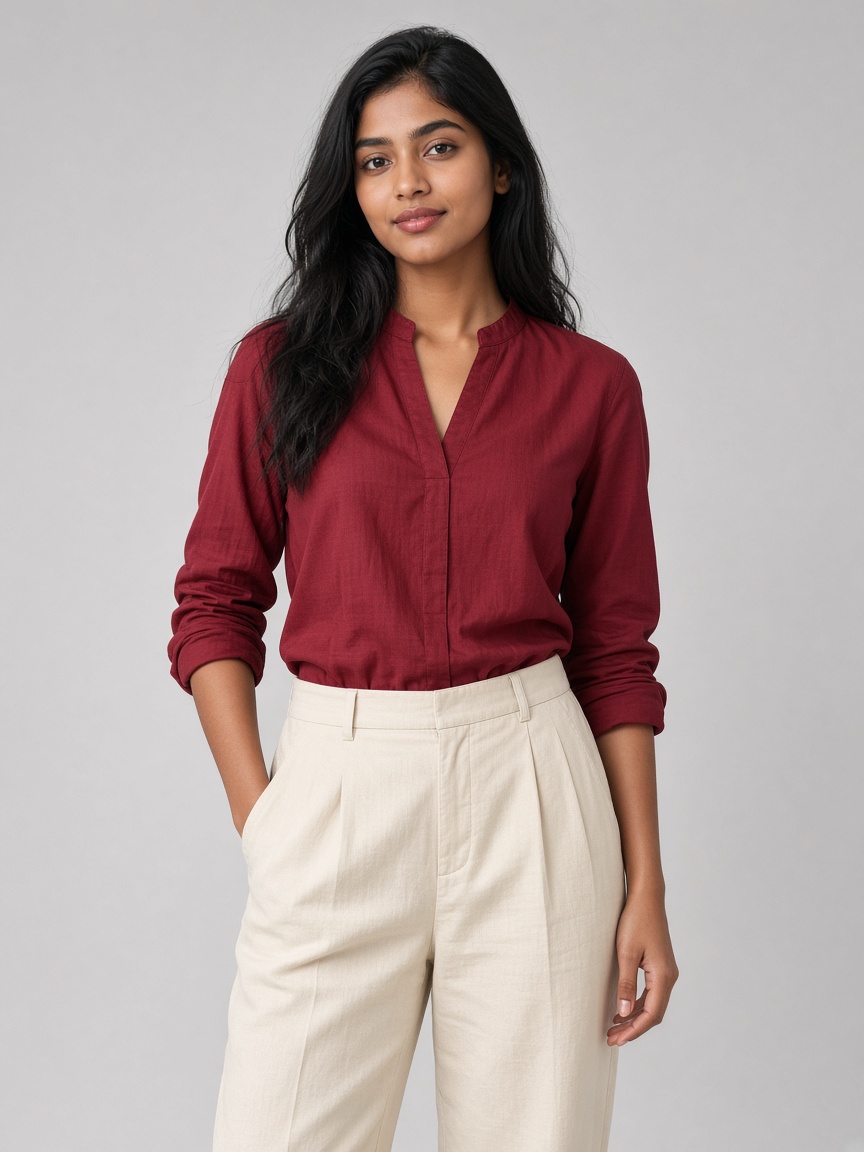 What a Sri Lankan online listing is waiting onThe bed, the warm bulb, the cash-on-delivery refusal, and the days spent waiting for a photo. A clear catalog shot takes those holds off the listing.
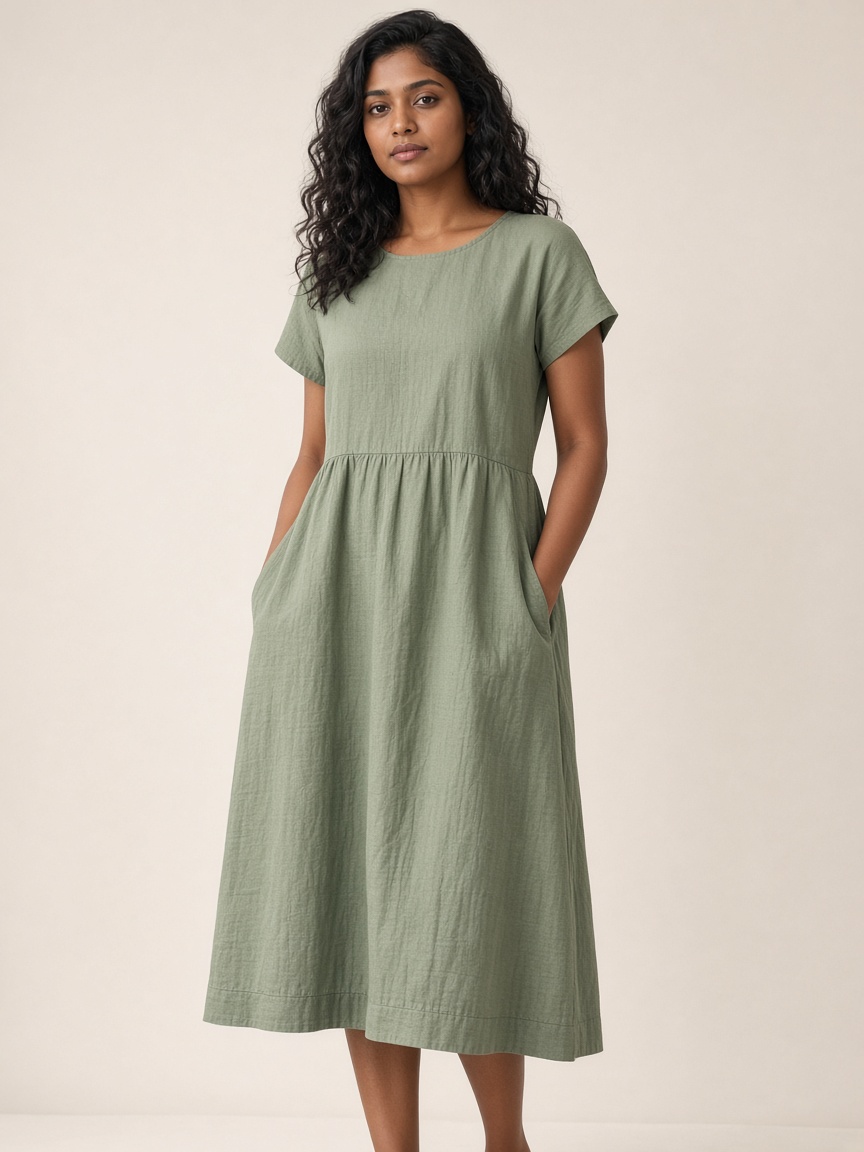 A WhatsApp listing the evening the dress arrivesHow a home seller can turn a phone photo of a new dress into a catalog frame and a status frame with InstantSnap, and send it out the same evening.
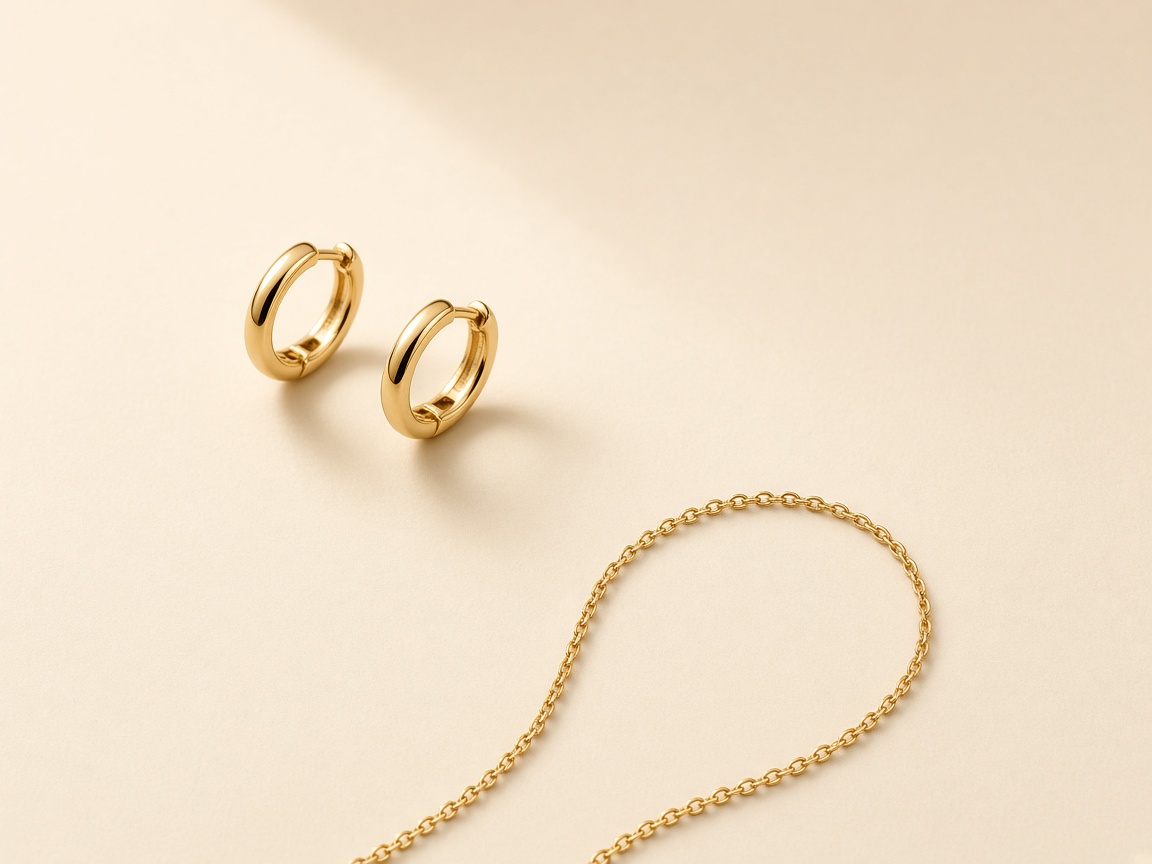 Jewelry and small accessories, shown closeHow to photograph earrings, chains, and other small accessories on a table, then make a detail catalog shot a buyer can judge.
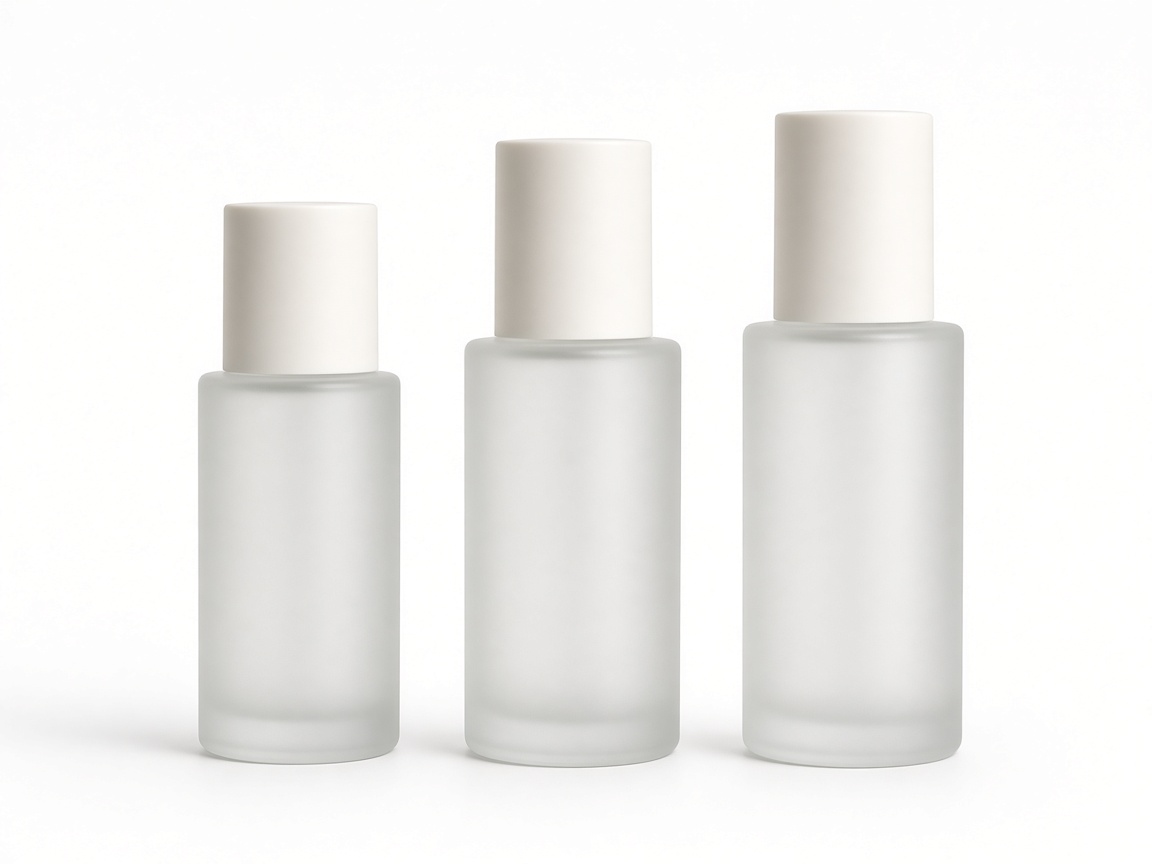 A skincare line that looks like one brandHow a small skincare seller can turn phone photos of bottles into a consistent product grid with InstantSnap.
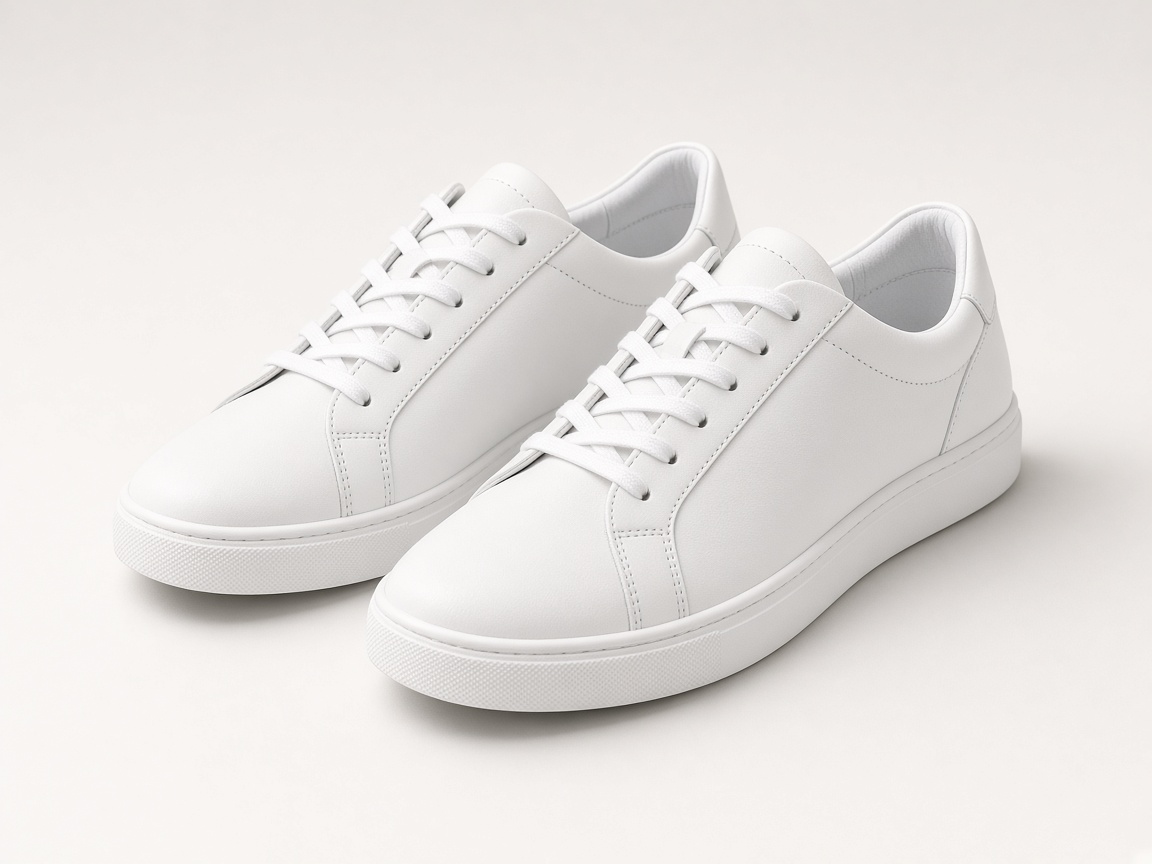 Shoe photos a marketplace grid can repeatHow a shoe seller can turn a phone photo from the shop floor into a square catalog shot, a side view, and a detail of the sole.
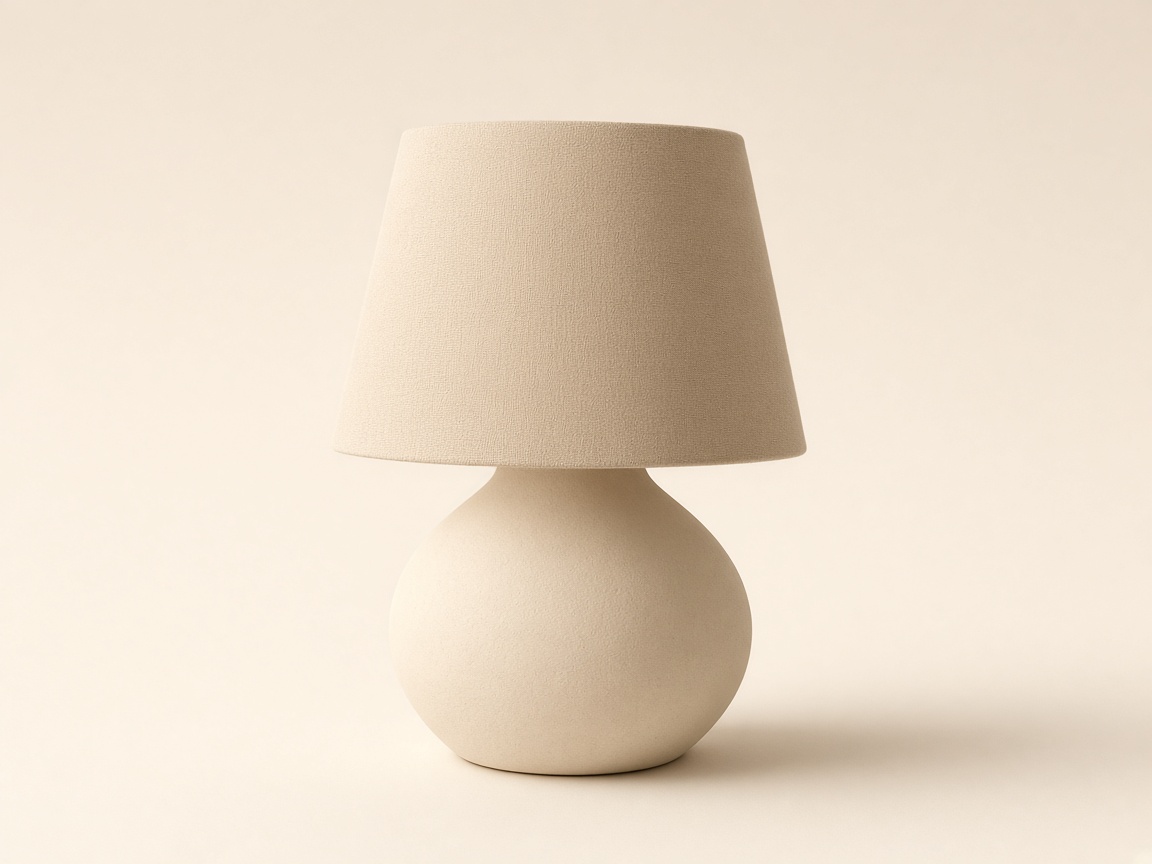 A lamp in the morning, a dress after lunchHow one InstantSnap workspace handles a home-goods shot and a clothes shot on the same day, without mixing the two catalogs.
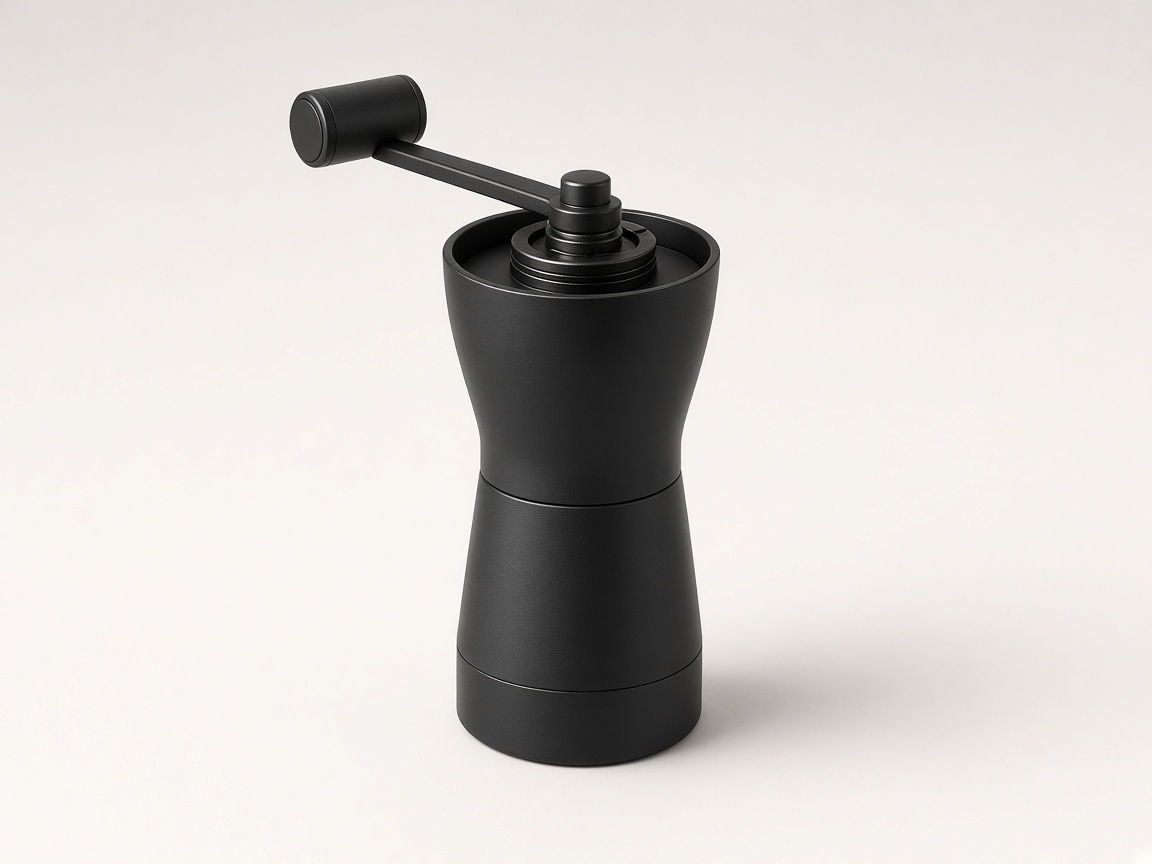 Product photos that a careful buyer can trustHow an online seller can turn a phone photo of a product into a listing shot and a lifestyle frame with InstantSnap, and why that photo is what a careful buyer judges.
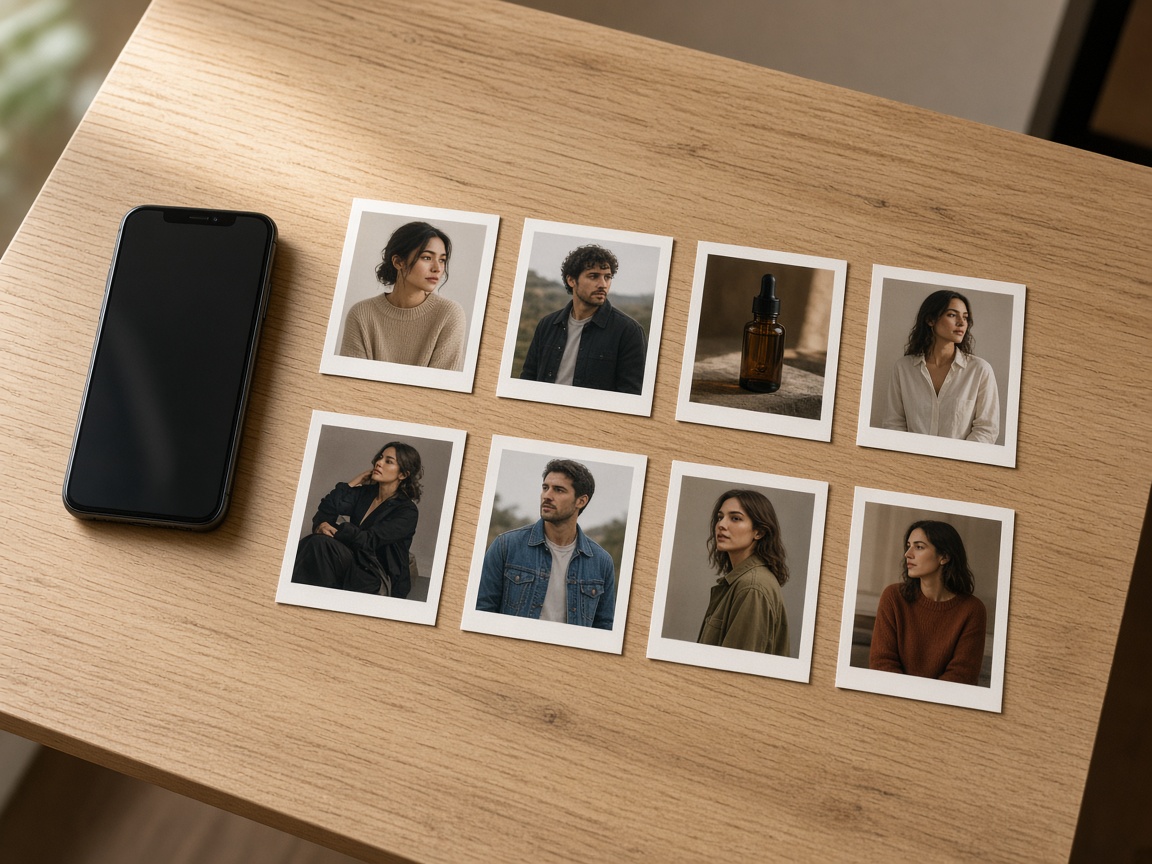 What a catalog month costs without a photo shootA published Colombo fashion booking for 25 catalog photos, set next to an InstantSnap month, and where the saving actually comes from.
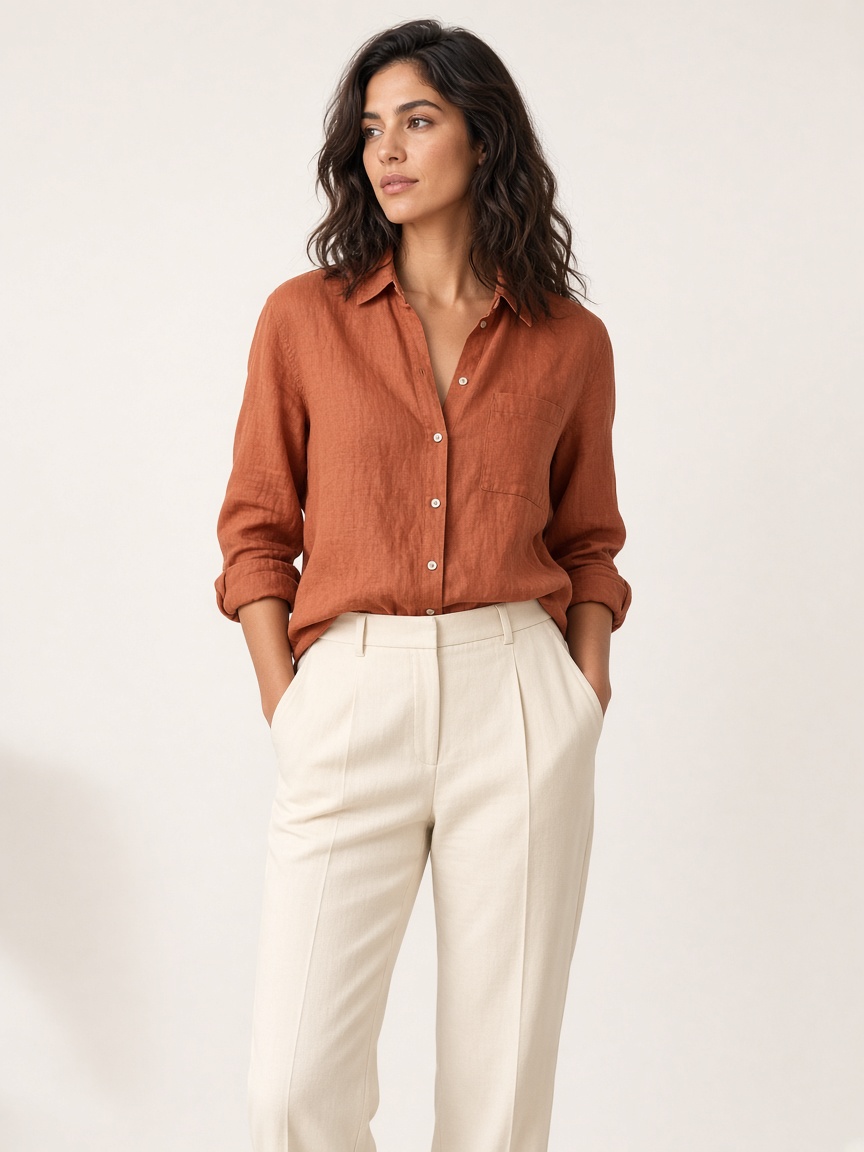 Professional clothing photos without a photo shootHow a clothing store can turn a phone photo of a garment into a model shot, a flat lay, or a lookbook frame with InstantSnap, and skip the cost of a studio day.
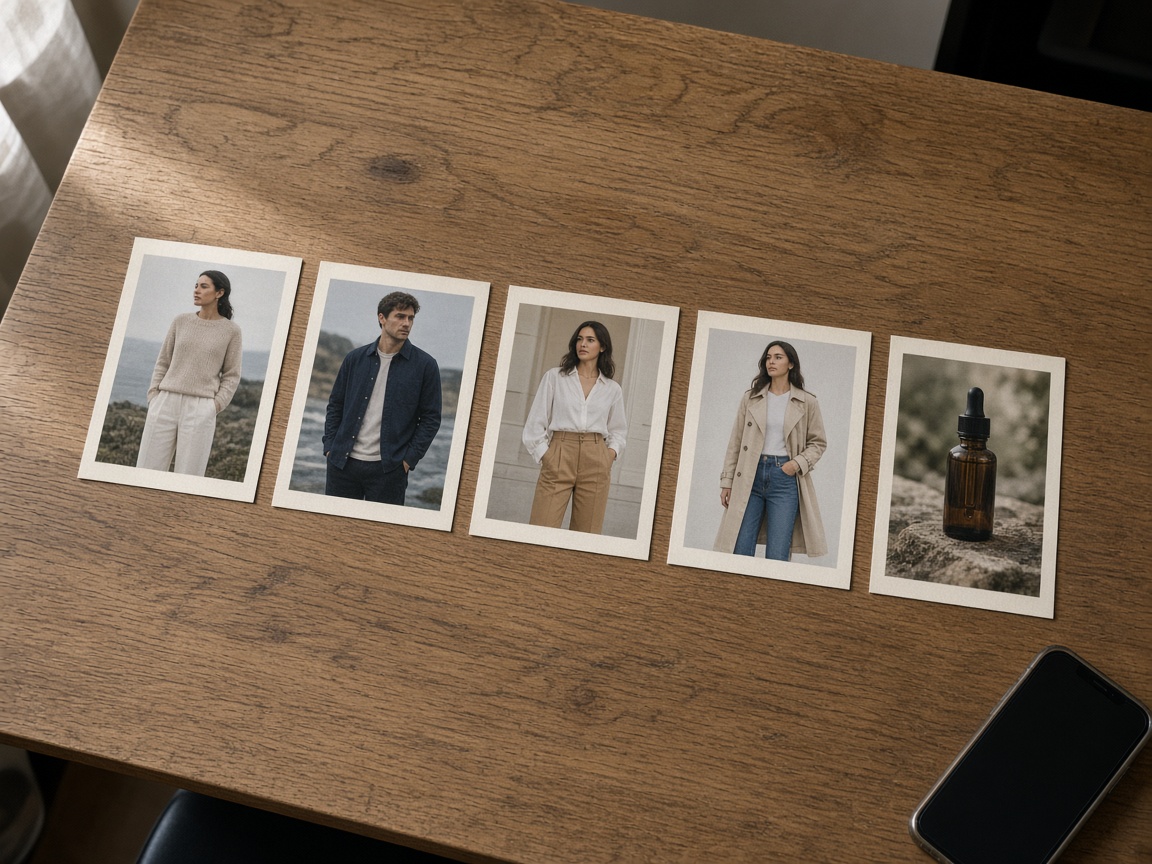 How the monthly photo allowance worksWhat Free, Standard, Premium, and Growth include in InstantSnap, and where to see how many studio shots are left this month.
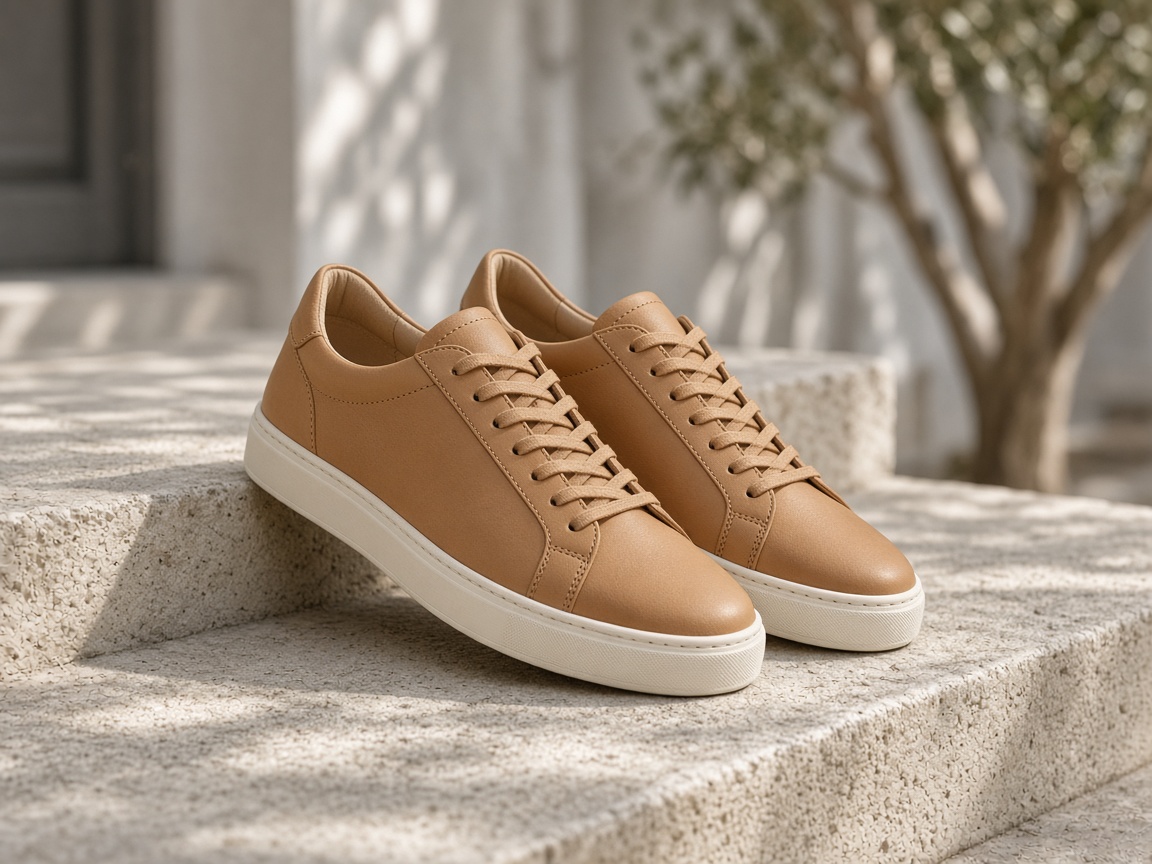 Angle, background, and frame for a store listingHow to choose an InstantSnap angle, background, and frame so a catalog photo fits a product page, a portrait, or a story.
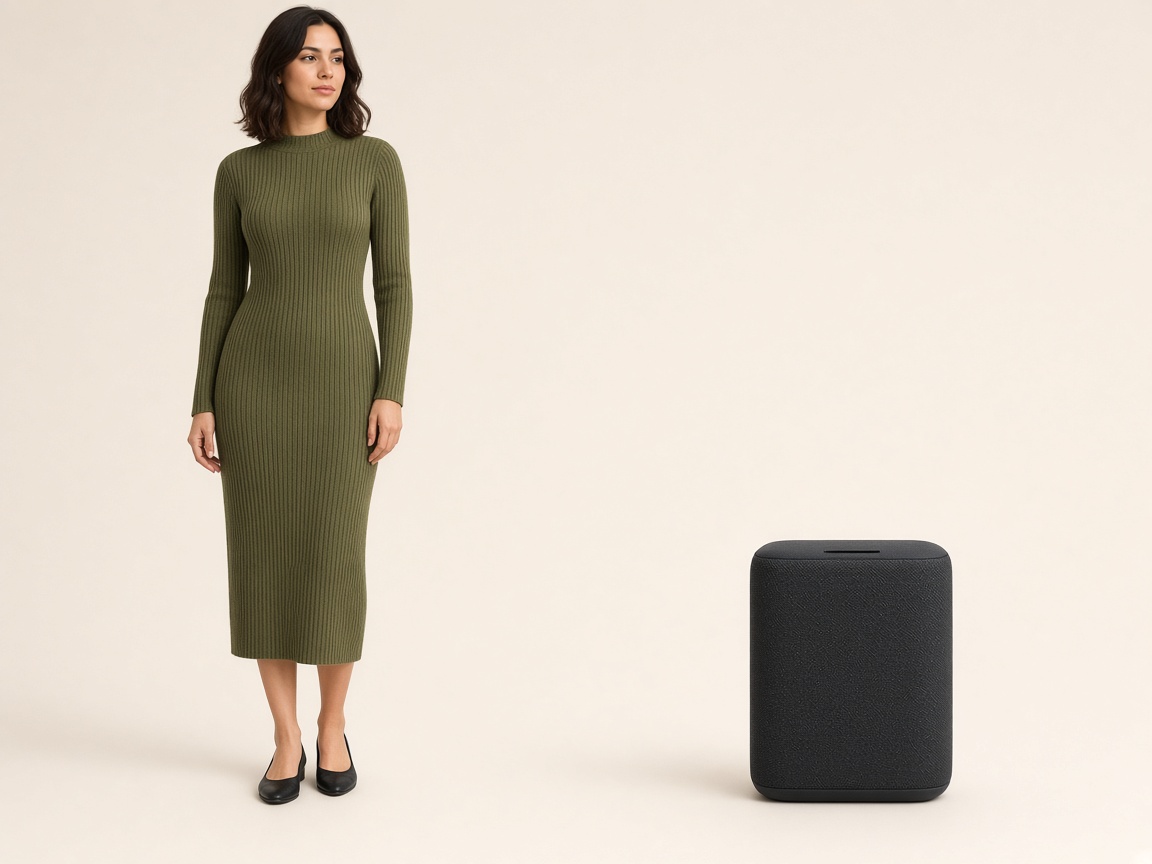 When to use a model, and when to leave the product aloneA practical guide to InstantSnap clothes shots versus product shots, including model, pose, skin tone, and hair color.
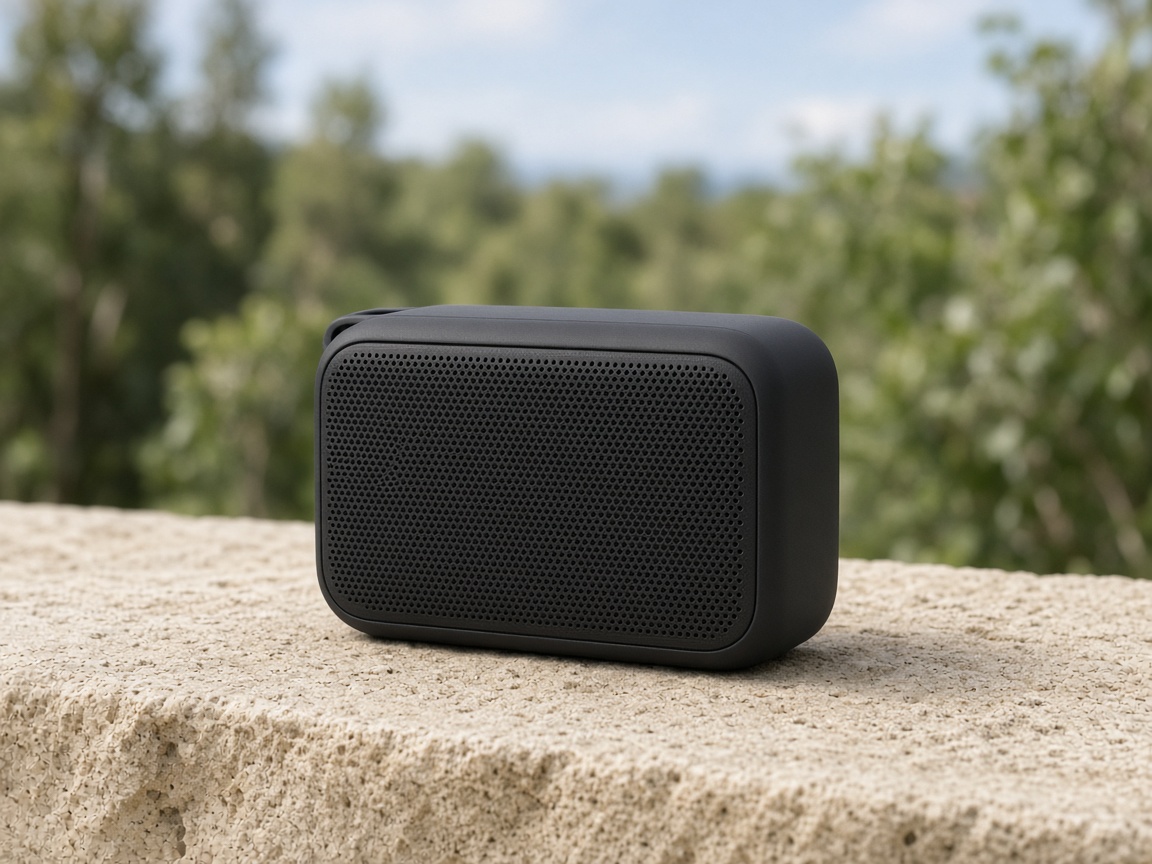 Catalog photos from a phone, without a studioHow a shop can turn a phone photo of clothes or a product into a catalog shot with InstantSnap, and what to photograph first.
InstantSnap is a web studio for catalog photos. A phone photo of clothes or a product goes in, and a studio shot comes out. You set the model, the background, the angle, and the frame, and every shot stays in the workspace.
Make a first shotAdd a phone photo in Studio, choose Clothes or Product, set the angle, background, and frame, then tap Make it studio. The finished catalog photo opens from Shots.
First studio shot tutorialYes. Choose Clothes, then Woman or Man, and set body build, pose, skin tone, and hair color. Leave a control on Any when you do not need it. Product shots skip the model.
Clothes on a modelShots is the library. Filter by clothes or products, open a finished photo, compare it with the original, and save it.
Find and save a shotEach plan includes a monthly photo allowance. Free, Standard, Premium, and Growth differ by how many studio shots you can make. Account shows how many are left, and a finished studio shot counts toward the allowance.
Plan and photo allowanceThe InstantSnap journal covers real selling days: a WhatsApp listing the evening stock arrives, jewelry, skincare, shoes, a mixed shop, and how a Sri Lankan seller gets a parcel online the same day. It also covers clothing photos without a shoot, angle and background, and the monthly photo allowance.
Read the journal