Create your first studio shot
Add a phone photo in InstantSnap, set the item and the look, then make a catalog shot and open it from Shots.
01
Add a photo
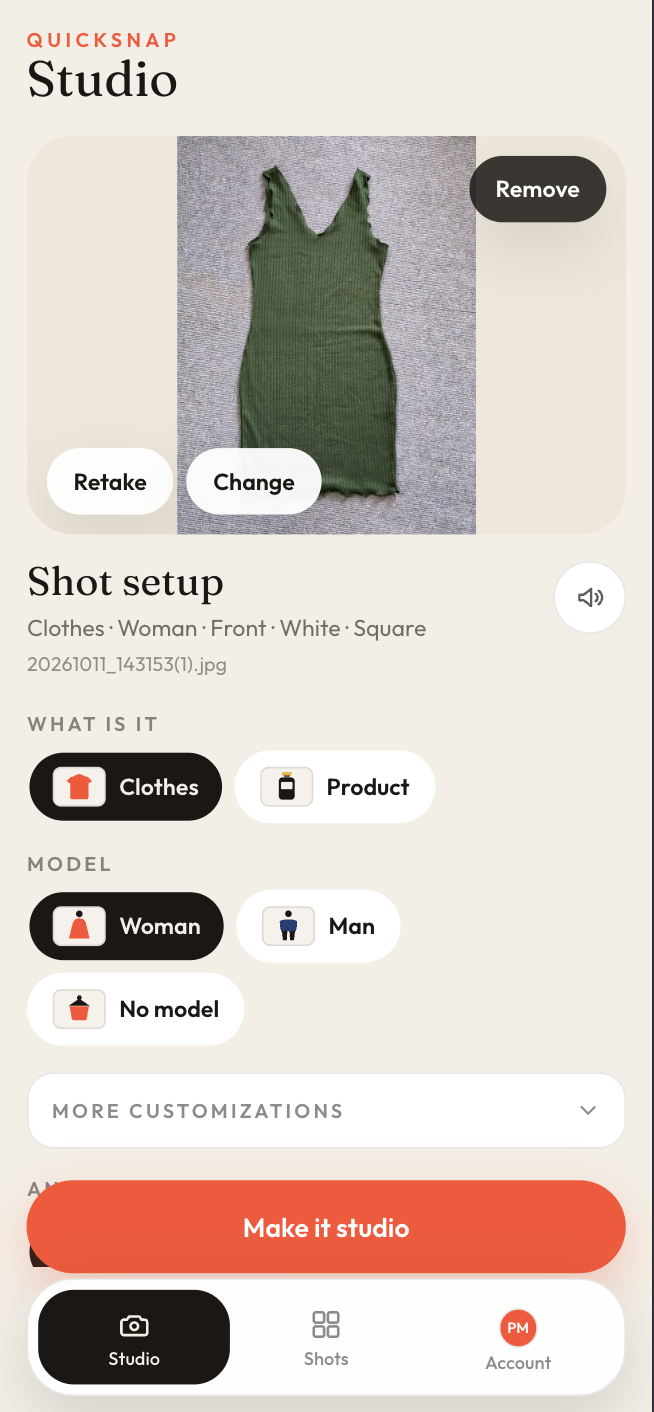
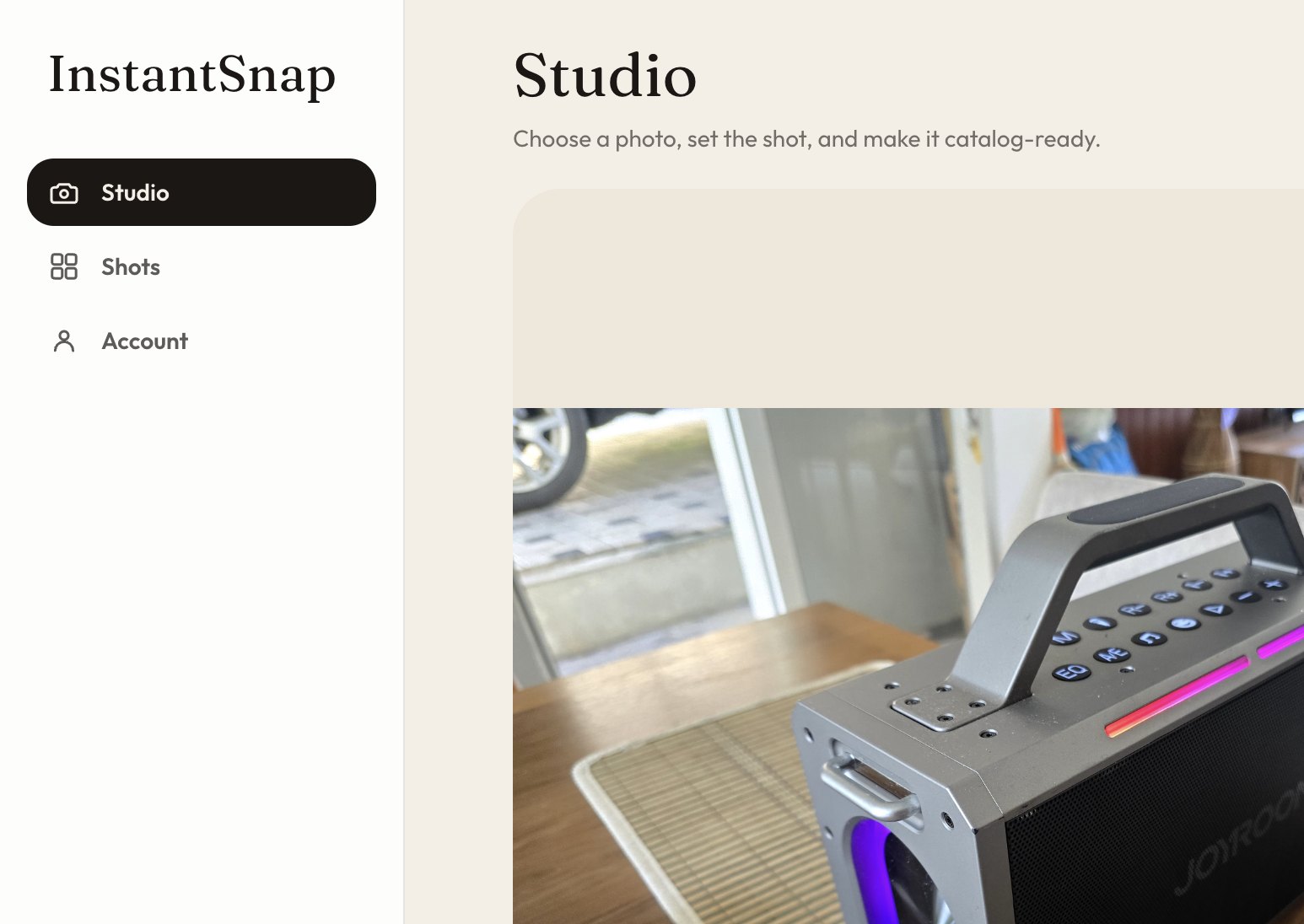
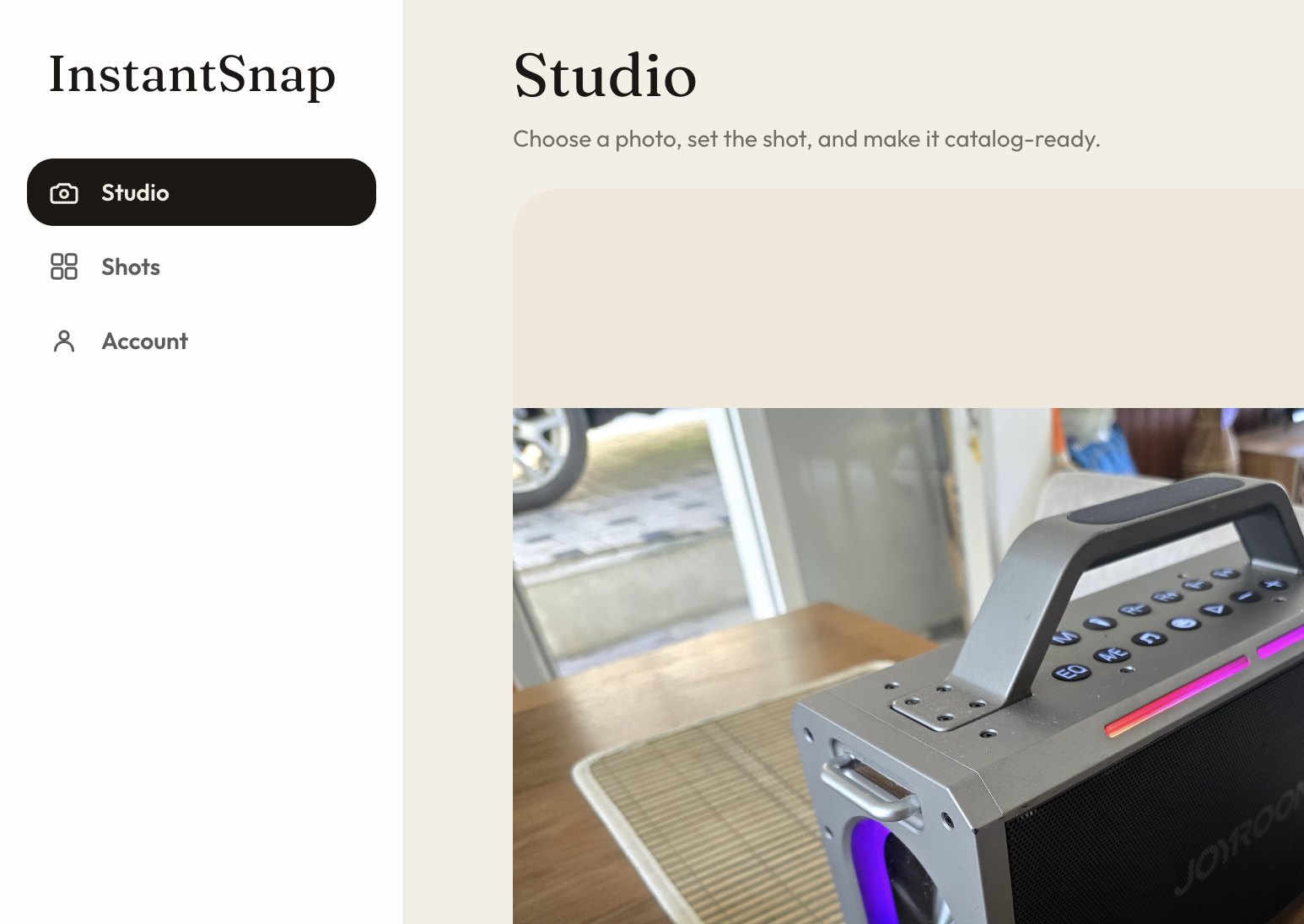
Open Studio. Take a photo with the camera or choose one from your library. HEIC photos from an iPhone are converted for you. On a computer you can also drop the file onto the desk. The photo stays on screen with Retake, Change, and Remove.
02
Say what the photo is
Under Shot setup, choose Clothes or Product. Clothes can include a model. Product keeps the object on its own, which is the right choice for a speaker, a bottle, or anything that is not worn.
03
Set the look
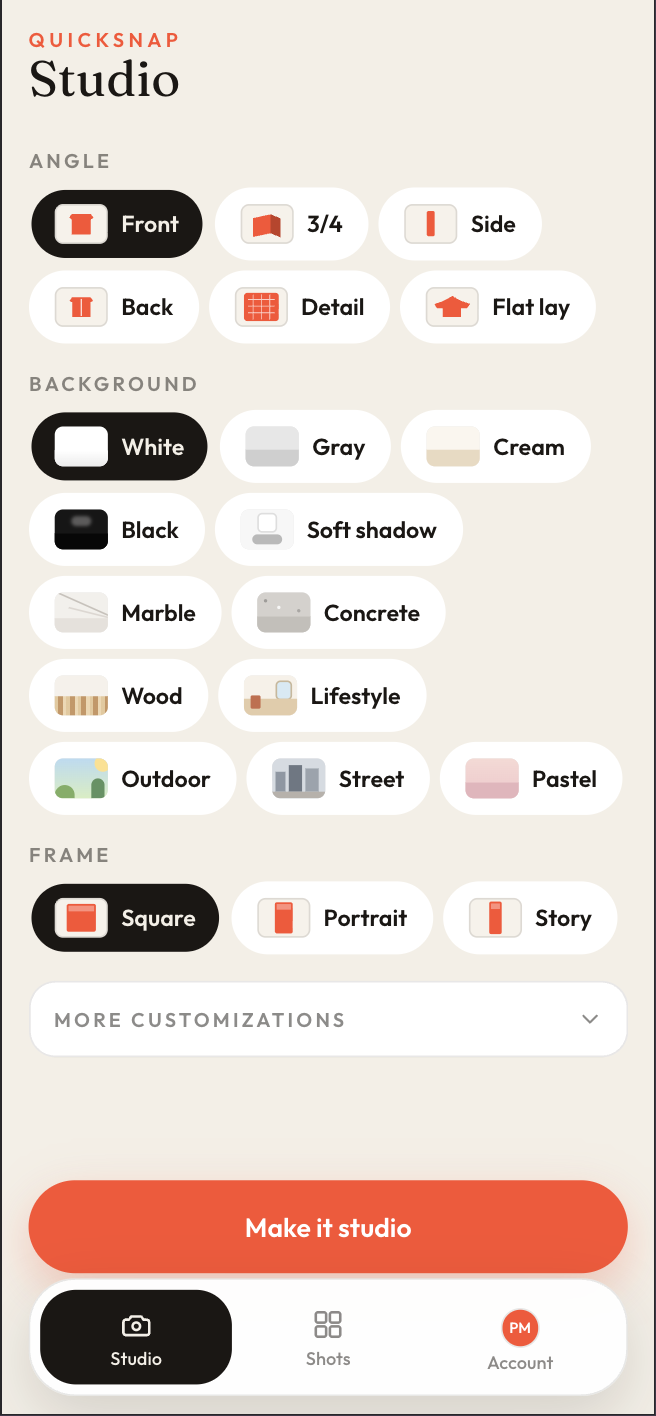
On a computer, open the Look tab. On a phone, scroll past the item choices. Pick an angle such as Front, 3/4, Side, Back, Detail, or Flat lay. Pick a background such as White, Soft shadow, Marble, Lifestyle, or Outdoor. Then pick a frame: Square, Portrait, or Story.
04
Make it studio, then open the shot
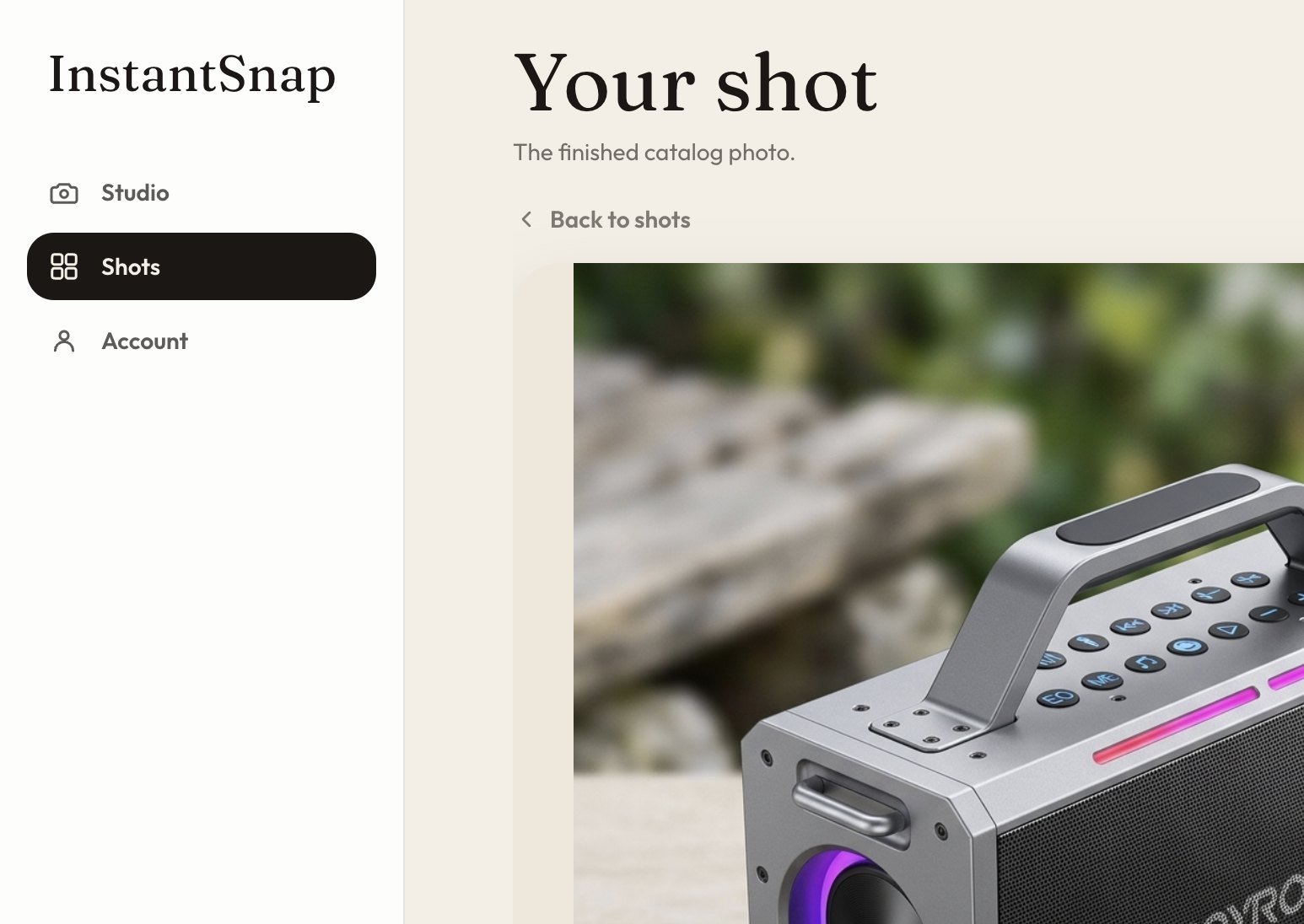
Tap Make it studio. When the shot is ready it is saved in Shots. Open it to see the finished catalog photo, the angle, color, background, and frame you asked for, and Save photo.